For an evaluation tool that measures regressions and improvements in agent responses, I need to visualize the output. At first, I figured it would be nice to create a web application with lots of charts and grids. Then it occurred to me that we also have Azure Managed Grafana
nowadays. This software is built for data visualization and supports a ton of data sources
, one of them being SQL Server
.
As I had never worked with this before, and because we need this visualization to analyze our measurements, I had a good excuse to start working with it.
Deploy the resource
The Managed Grafana offering is a regular Azure resource and is deployed as such. It is important to assign an identity to this resource, either a system-assigned identity or a user-assigned managed identity (UAMI). For demo purposes, I’m using a system-assigned identity, but for production, a UAMI is the way to go in my opinion.
resource grafana 'Microsoft.Dashboard/grafana@2024-10-01' = {
  name: name
  location: location
  tags: allTags
  identity: {
      type: 'SystemAssigned'
    }
  sku: {
    name: skuName
  }
  properties: {
    apiKey: enableApiKey ? 'Enabled' : 'Disabled'
    autoGeneratedDomainNameLabelScope: 'TenantReuse'
    deterministicOutboundIP: deterministicOutboundIp ? 'Enabled' : 'Disabled'
    publicNetworkAccess: publicNetworkAccess ? 'Enabled' : 'Disabled'
    zoneRedundancy: zoneRedundancy ? 'Enabled' : 'Disabled'
  }
}
Assigning permissions to Grafana’s data plane
I’m running the entire deployment via my deployment pipelines, including the dashboards in the Grafana resource. Because of this, I also need to make sure the deployment principal has enough permissions to create resources on the Grafana data plane. Choose the Grafana Editor (a79a5197-3a5c-4973-a920-486035ffd60f) or Grafana Admin (22926164-76b3-42b3-bc55-97df8dab3e41) role for this purpose. From a least-privilege standpoint, the Grafana Editor role is preferred.
Read more →Once you have set up your sharding solution
with a fully configured Shard Map Manager
, modified your data access layer to use Elastic Scale
, added fault handling
and running your stuff in production, there will be a time when you are in need to split, merge or move shardlets between shards.
This is where the Elastic Scale Split Merge tool
comes in place. The team has created a nice web application which will enable you to do this kind of management. In order to use this tooling, you have to download the latest Nuget package (1.0.0.0 at the moment) into your project. This will create a new folder called splitmerge which contains two subfolders (powershell & service).
The folder containing the PowerShell scripts will give you the power to move, merge and split shards via scripting. A preferred solution for most power users.
The service folder contains a package and configuration template to deploy a web application which is able to do the exact same thing as the PowerShell scripts.
As I don’t fancy big PowerShell scripts for blog posts that much, this post will dig into the service part a bit more.
There is a nice tutorial available in the documentation
on Elastic Scale describing on how to use and configure the Split Merge service. The basics come down to specifying a connection string to your newly created database and file storage in the configuration file. Afterwards you can create a new cloud service with the package and configuration. If all works well, you are ready to use the tooling. A best practice is to copy the settings of your deployed configuration file somewhere safe and do incremental updates on it when a new version of the Nuget packge is released.
Read more →There are quite a lot of differences between having an on-premise data center and using the cloud. One of these differences is the (guaranteed) uptime and the latency between the different servers. When creating your local on-premise datacenter you will have a pretty stable network connection between the different servers and it’s probably really fast. The cloud can be pretty fast also, especially when you are located in the same datacenter/container. However, you don’t have any real guarantees on where your stuff gets deployed, let alone the latency or connection between the servers.
This might lead to some small problems when you have to hit a different server, like when accessing files from storage or querying a database. This is why the Microsoft Patterns & Practices team has published the Transient Fault Handling Application Block
. This application block states there are several transient exceptions which can occur when you try to access a service. These exceptions are known to sometimes be automatically be resolved over a small period of time, therefore retrying within a small period of time might fix the problem.
Basically, all this application block does is helping you add a retry-mechanism so you don’t have to worry much about these transient errors yourself. There are a couple of retrying strategies available out of the box
when using the Entity Framework. The SQL team has also provided a new retrying mechanism to be used with the Elastic Scale libraries
.
Read more →Now that you have configured Elastic Scale
for your solution there are still some changes to be made in your application.
At the moment there are 2 sample applications available, one using plain old SQL-queries (ADO.NET) and another one using the Entity Framework. I would suggest checking out these samples before doing any serious Elastic Scale work.
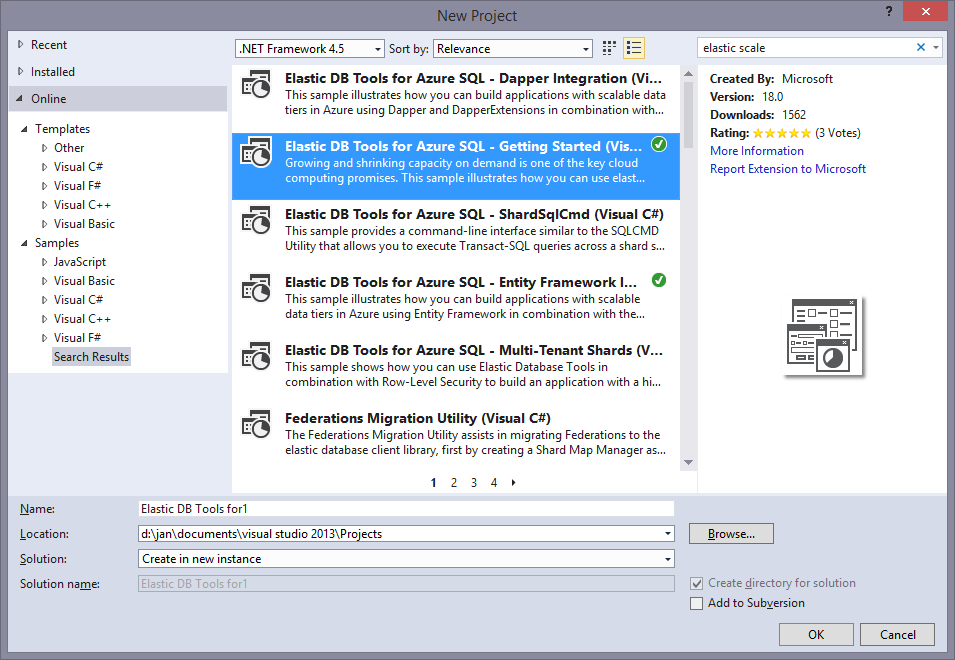
You will probably notice there are some small differences between the ADO.NET sample and the Entity Framework sample. One of them is the Entity Framework not having a sample for doing multi sharded queries. This is because Entity Framework (or any other ORM for that matter) can’t use the multi shard connection objects which are used by the Elastic Scale libraries. I’ve developed a small work around (hack) for this which is shown at the end of this post.
First, let’s step through the basics on how the Elastic Scale library is supposed to be used.
As stated in my earlier posts
about this subject, Elastic Scale should be used when you are creating different shards each with subsets of data. In order to connect to the a shard all you need to do is use the Elastic Scale library.
// Looks up the key in the shard map and opens a connection to the shard
using (SqlConnection conn = shardMap.OpenConnectionForKey(customerId, credentialsConnectionString))
{
	// Create a simple command that will insert a new order
	SqlCommand cmd = conn.CreateCommand();

	//Execute your commands, the way you would normally do.
}
As you can see, all you need is the shard map you want to use, the identifier to search for and (the shardlet) and a credentialsConnectionString. The shardlet is specified in the ShardMap of the ShardMapManager
. The connection string is something you will have to create yourself. It should only contain the credentials to log in to a database as the Elastic Scale library will find out the server and database by itself. The sample application has a nice helper method for it which you can use of course.
Read more →When implementing a sharding solution, you will need something which knows in what shard a specific shardlet exists. This is something you will want to store in a single location, so you know for sure you are always using the most recent information. When using the Elastic Scale libraries
this is called the Shard Map Manager. The Shard Map Manager keeps track of the location & state of the shardlets and shards. As you can imagine this is quite an important aspect of the sharding solution.
In a perfect world you will generate the Shard Map Manager (SMM) once, telling it which which shardlets reside in a specific shard and never update it again. Since the Shard Map Manager only exists in one location and hardly ever changes, it’s a great candidate for caching. This is why the Elastic Scale libraries are making sure the content of the Shard Map Manager is cached right after the first call to the database. This way the latency between the SMM and the remote location will only be hit once, after this first call it will be in-memory of the invoking location.
In the real world however, the SMM will get some changes from time to time. For example, if you are sharding by continent you might decide you want to narrow them down a bit by changing US to West US and East US. When sharding with ranges (0..100, 100..200, etc.) you might have to add some new ranges from time to time.
Read more →These days we all want to build the next big thing which will be deployed across the world. This of course is all fun and games, but there are also some technical difficulties you have to overcome when creating a software platform which has to be available from everywhere in the world with a responsive interface.
One of these difficulties you will have to face is getting the required data near your customers. Most of the time we are using a database to store this data for us. In the traditional form, this will likely be an on-premise database somewhere in a datacenter (with all disaster recovery aspects in place of course). Note, I’m talking about the traditional relational databases over here, but most of it will also apply on the non-relational databases.
In order to deploy your software globally, the data has to move with it. It doesn’t make much sense to deploy your software solution in a datacenter on the other side of the world when all data still remains far away, because the latency will slow down the experience. There are of course multiple solutions you can think off to solve this problem, one of them is to use sharding in your database.
Read more →For quite a couple of years now, the SQL Data Sync software has been available to synchronize data between MS SQL Server databases. This SQL Data Sync however has been decommissioned
and we have to resort to the the (new) SQL Data Sync (Preview)
nowadays.
SQL Data Sync is a solution/feature which allows you to synchronize data between several SQL (Azure) databases. The best thing is, you don’t have to synchronize your complete database. You can choose which tables and columns need to be synchronized. This is a very nice feature if you have, for example, your database scaled out in multiple regions of the world and some of the data has to be kept in sync.
The new SQL Data Sync has been made available through the Azure management portal. When navigating to the SQL Databases tab you will have an option available to Add Sync, which will create a new SQL Data Sync group_._
For the purpose of this post I have created 2 databases, one located in West Europe and one located in East US.
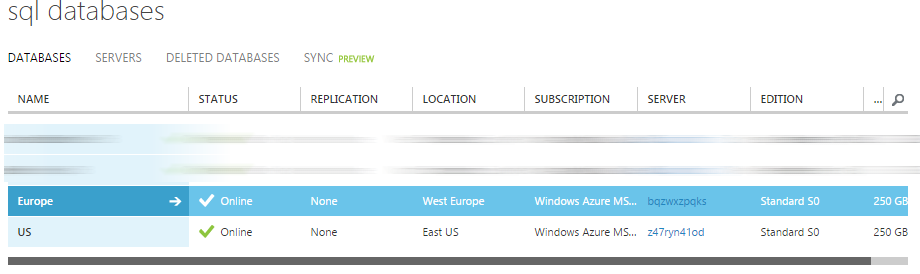
To keep them synchronized I’ve added a new Sync Group via the portal.
When creating the sync group, you have to specify which database will operate as the Hub. Basically this means which database will be the master. It’s also possible to select the conflict resolution in this step. The default value is Hub Wins, but you can also specify the client should win in case of a conflict.
Read more →As I wanted to move an on-premise MS SQL database to Azure SQL I was notified with an error message telling me this:
Error SQL71564: Element Column: [dbo].[SomeTable].[Id] has an unsupported property IsRowGuidColumn set and is not supported when used as part of a data package.
Every table in the database has a GUID (uniqueidentifier) as a primary key and apparently, the ROWGUID is set to YES. It’s too bad there isn’t much documentation on the ROWGUID
option telling us what it actually does. By searching for this feature I have discovered it is meant to create a unique key across multiple servers
, only useful if you want to enable the SQL Server Replication feature. I’m not really sure about this description, as a uniqueidentifier (GUID) should be unique no matter what. However, this post is not about GUIDs in SQL.
Because of the above error, I had to change all tables in the database. The ROWGUID had to be removed. This can be done manually of course, but that’s not really fun.
I decided to generate a query which creates an ALTER script for me. The script will iterate through all tables and SELECT the query which needs to be run. All which is left to do is copy the result to a query window and run it.
Read more →There comes a time when you have to do something which appears impossible at start. One of the things I had to confront is moving my SQL database files from the D-drive to the L-drive.
Moving regular SQL database files isn’t that hard at all. Just detach the database, move the files to a new location and attach the database again. However, system databases can’t be moved in this way, which makes sense if you think about it. To move the system databases, you need to run some queries. This method is described on MSDN
and there are also some forum posts
which describe the necessary actions.
For future reference, I’ll describe the necessary steps below.
First, stop the SQL Server and add the following to the startup parameters:
-dL:\Databases\MSSQL.1\MSSQL\Data\System\master.mdf;-eL:\Logs\ERRORLOG;-lL:\Databases\MSSQL.1\MSSQL\Data\System\mastlog.ldf
This will make sure the master database files are searched at the new location (L:\Databases\MSSQL.1\MSSQL\Data\System\)
Now move the physical master database files to the new location.
At this moment it’s possible to start SQL Server again by running the following command:
NET START MSSQLSERVER /f /T3608
This will start SQL Server in master-only mode. You can open Management Studio now again and start a new query window (the Object Explorer doesn’t work in this mode) (using SQLCmd wil also work). In this new query window you will have to execute this script to move the databases to the L:\Databases\MSSQL.1\MSSQL\Data\System\ location.
Read more →When setting up an Orchard website you’re given a choice to use a ’normal’ SQL database, or SQL Compact. When developing new modules I often choose for the SQL Compact option. I choose this option, because it’s very easy to backup and restore the database file. If you mess something up, you’re fairly safe.
You can of course backup and restore normal SQL databases, but this takes a bit more effort compared to copy-pasting a database file.
I hardly ever use a SQL Compact database in other environments as development. This means whenever I need a dump from the Testing environment to Development I’ll get a normal database backup file, or a bacpac export file
. These files can only be restored to normal SQL databases, so that’s a small problem.
Apparently no one at the SQL-team has considered that someone might actually want to ‘downgrade’ their database to SQL Compact.
When searching the web you’ll find a lot of pages people asking the question “How can a SQL database be migrated to SQL Compact
”. As it happens, migrating to SQL Compact is rather easy, once you’ve found the appropriate posts on Stack Overflow. @ErikEJ
has written 2 applications which make it really easy to do such a migration.
Read more →