I had the opportunity to get a new development machine and it had to be a laptop. I’ve used solely Windows machines in the past and was always annoyed to see my peers, using a Mac, have awesome battery life and could have their laptop on their lap or table without melting the surface and never have fans turning on when doing simple stuff.
That’s a couple of reasons I chose to get a Macbook Pro myself this time. Of course, having the laptop integrate with all my other Apple hardware at home is a nice perk too.
What did I get
At this moment, a Macbook Pro comes with an M4 chip.
Based on what I’m reading on the internet, you can’t go wrong with any of these chips. Be it the M4, M4 Pro or M4 Max. I did read the fan turns on from time to time with the M4 Max, but that kind of makes sense. The M4 Pro machine was within the budget I was looking for, so chose that one.
There isn’t much to choose from when you know the size, 14", and CPU you want. I went with the 48GB memory and 1TB of storage option and that’s the machine I’m typing this post on right now.
Read more →Normally when you are creating new appointments via Outlook in your organization you are inviting everyone who should join the meeting. This works quite alright, but not something I wanted to do for a couple of meetings I am planning. The meetings I’m organizing are optional to everyone inside the company, therefore I don’t want to spam the inbox of everyone with a meeting most of them (probably around 95%) aren’t interested in.
What I want to do is share the appointment with all of the people inside (or outside) the organization via a shared portal, like Yammer, SharePoint, Slack, etc., and let them choose to add or ignore the meeting.
Sounds easy right?
Normally you will do this by opening the meeting, save it as an ICS file and share it.
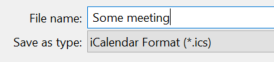
However, this didn’t work for me this time!
When people opened this ICS file in Outlook, they were not able to send a response as the meeting was stating “As the meeting organizer, you do not need to respond to the meeting.” with a big button shown in the ribbon saying “No Response Required”.
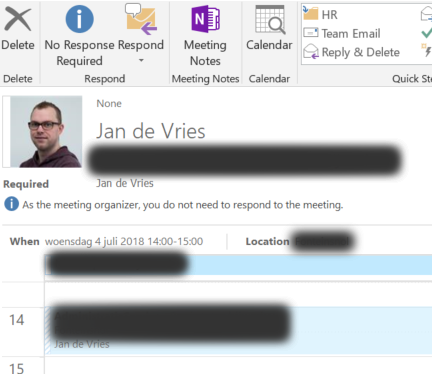
This struck me as quite strange as sending the invitation by inviting people (the normal flow) does work properly.
Read more →A couple of days ago I read a very cool blog post by Scott Hanselman about Monospaced Programming Fonts with Ligatures
.
I had never heard about the word ligatures, but he explains it quite well. They are ‘characters’ which are made up by combining multiple individual characters as one. Apparently this is quite common in the Arabic languages. Well, no matter, the thing that does matter is the fact you can use this inside your development environment also!
In order to use ligatures, just install the Fira Code font
(or any other font which supports ligatures) on your development machine and you are ready to go! It might be a good idea to place the zip file in your OneDrive folder, so it’s available on all of your machines.
Visual Studio automatically supports ligatures, you just have to select a font which has them. So, head down to the Fonts and Colors setting and change the Plain Text font to Fira Code Retina.
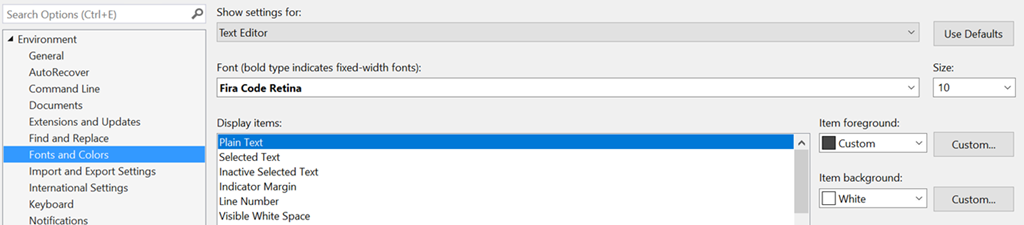
Note, I had to use the Fira Code Retina font. I first tried the Fira Code font, but I didn’t see any ligatures pop up. There aren’t many differences between the non-retina and the retina version, so just use the one which works best for you.
Read more →The past couple of days I’ve had the pleasure to start using a Git server as the new version control system at my customer. I’ve already had the pleasure to use GitHub and BitBucket in the past, which works like a charm with tools like GitHub for Windows and SourceTree. Because I’m used to using these tools, I really wanted to use them on my day job also.
Because we chose to use SSH keys as a validation mechanism I had to create one. Once you know how to do this it’s quite easy, but till 2 days ago I didn’t had a clue.
Lucky for me there’s a nice tutorial on how to create SSH keys on the GitHub help pages
. Also Atlassian has provided an extensive help document
with a couple of steps. In retrospect I think the Atlassian help page is the most useful for helping out with local Git servers. However, these help documents don’t take into account the usage of SourceTree and you will need to do some extra steps to get this working.
For future reference, I’ll describe the steps I had to take below.
First thing you want to do is install Git
, the Git Extensions
and if you haven’t already, SourceTree
.
Read more →There are some cool features available in Linux. In an earlier post
I already mentioned the apt-get functionality which is now also offered in Windows via Chocolatey. One of the other cool features is being able to execute something in the terminal as an Administrator by specifying sudo in the command.
Lucky for us Windows people, someone has created a tool which is able to do something similar as the Linux sudo-command. The tool is called Elevate
and can be downloaded from over here: https://code.kliu.org/misc/elevate/
After you have downloaded the zip-file from the website, copy the appropriate executable to your System32-folder and you are good to go!
By specifying the Elevate command in the command prompt, PowerShell window, Windows Search or Run-window the command will now be executed as an Administrator.
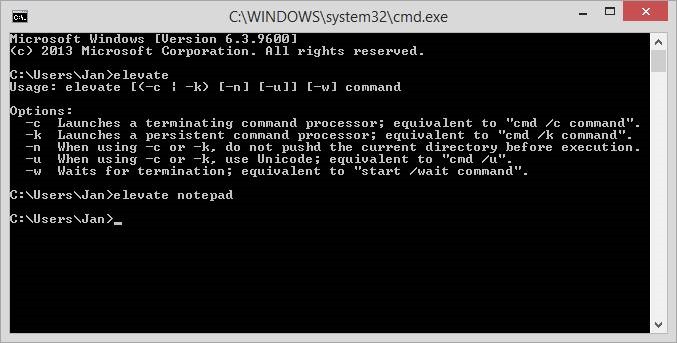
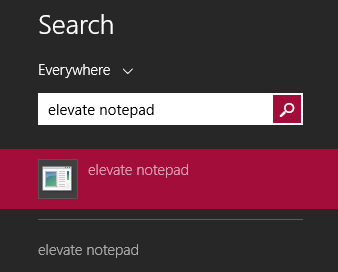
![clip_image002[6]](https://jan-v.nl/Media/Default/Windows-Live-Writer/Doing_D658/clip_image002%5B6%5D.jpg)
Depending on your UAC settings, you are still prompted with the question if you really want to run the application (Notepad) as an Administrator.
I think this functionality could be extremely useful if you want to run specific commands of a script as an Administrator.
Read more →Even though the Windows operating system is one of the best in my opinion, there are always something which is only available in a different OS. For example the apt-get functionality in Linux. I don’t know how this works exactly, but from my basic understanding it’s some kind of repository with a lot of software and libraries which you can download to your device by typing something like the following in a terminal window:
Why this feature isn’t available by default in Windows is a mystery to me.
Quite some time ago, Scott Hanselman blogged about Chocolatey
. Chocolatey is something similar to the apt-get feature from Linux, but now available on a Windows machine. (disclaimer: it’s not really the same, but works for me)
Ever since reading this post I wanted to use this awesome piece of software, but all my systems were already up-to-date and never needed it. As of this week, I’ve started working on a new project. Therefore, a new virtual machine had to be installed and configured. An awesome excuse to start using Chocolatey
!
With Chocolatey you can install all kinds of software, just by typing a command in your Command Prompt or PowerShell window. It will automatically download and install the software for you. The only thing you need to do is wait for the command to finish.
Read more →On some installations of Visual Studio 2010, 2012 or 2013 I’m confronted with strange behavior. One of these strange things are the black lines in the Watch Window of Visual Studio. Just like the screenshot below (this isn’t my screenshot, I’ve ‘borrowed’ it from someone else)
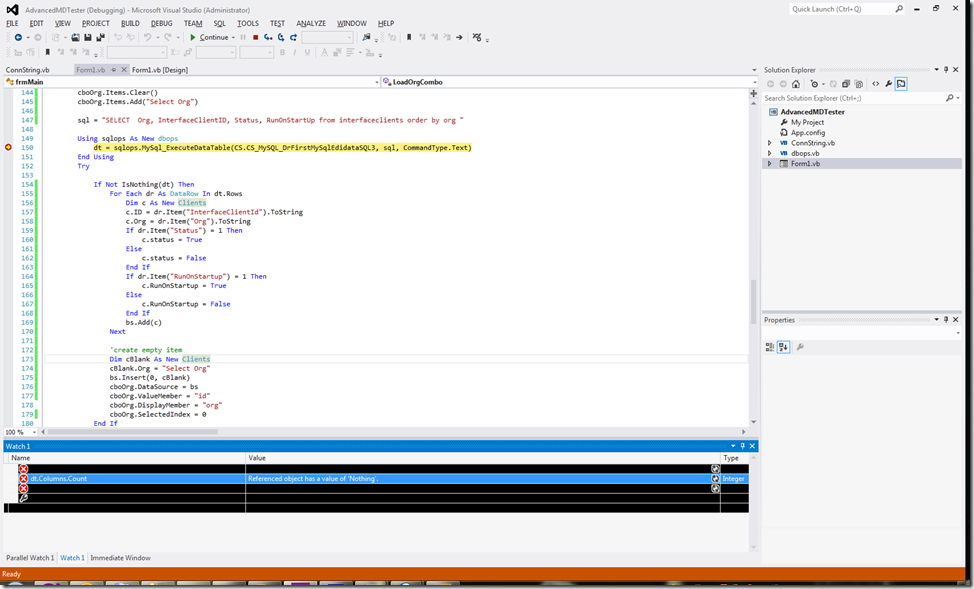
Normally this has something to do with the graphics driver, but updating these drivers doesn’t work all the times. There’s also a work around for this problem, described on the MSDN forum
.
The work around is:
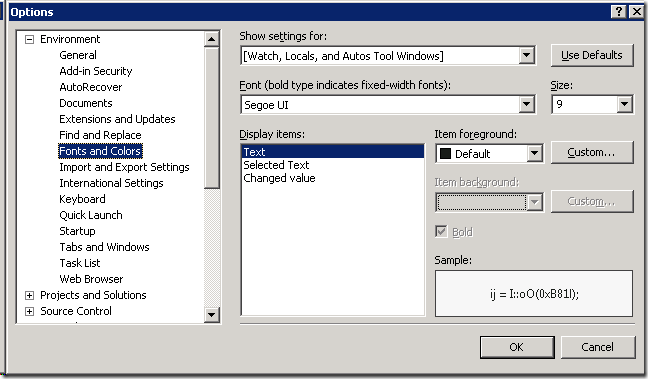
Go to Tools > Options > Environment > Font and Colors
Search for the settings for [Watch, Locals, and Autos Tool Windows]
For Text select the Default for Item ForegroundThe options will look something like the image below.
After you’ve set this option you’ll be able to see the text in your watch window again. The lines will be white again with black text.
Read more →The solutions in the project I’m working on are quite big and can easily take up 30 to 90 seconds to build, even though we have rather fast laptops. This is probably because of some build-plugins we are forced to use and the tight SharePoint integration of those plugins. Nevertheless, it’s quite annoying to see Visual Studio ‘hang’ every time you build your solution.
Last week I had some time on my hands to do some research on how we could improve these long builds. Turns out you can call MSBuild
directly and let your solution compile outside of the Visual Studio instance. The build will still take up about the same amount of time, but it’s less annoying as you can still do some work in Visual Studio.
I’ve used Scott Hanselman’s blogpost
to create some new External Tools in Visual Studio, placed them in my Menu and created keyboard shortcuts for them.
At the moment I’ve got 3 new items in my menu to build my complete solution, clean my complete solution and to build the project I’m currently working in.

The ‘Clean Solution’ button bound to the default out-of-the-box functionality, offered by Visual Studio.
The External Tool ‘Solution (MSBuild)’ is configured like so:
Read more →Onlangs ben ik weer begonnen met het studeren voor de nieuwe certificaten voor ASP.NET 4.0 en Sharepoint 2010. Hier zijn momenteel al enkele goede boeken die kunnen helpen met het leren van de materie, zoals:
Om m’n tablet toch weer eens goed te kunnen gebruiken, heb ik gekozen voor het pdf formaat van deze boeken. Het lezen gaat prima, echter is er 1 groot nadeel van de huidige pdf readers, namelijk dat je geen bookmarks (ezelsoren) kunt maken in een boek. Zo moet je dus zelf onthouden waar je in welk boek bent. Niet echt handig.
Gelukkig is er iemand zo goed geweest die zich hier ook aan ergerde en een mooie javascript plugin heeft geschreven voor Adobe PDF Reader. Het script is hier te vinden, inclusief de manier hoe het geinstalleerd dient te worden: https://www.aldenta.com/2006/09/15/plugin-bookmark-a-page-in-your-pdf/
Hopelijk wordt deze functionaliteit nu ook eens standaard geimplementeerd in de readers.
Read more →Met de invoering van Excel 2007 is er ook een ‘leuke’ feature ingeslopen, namelijk dat je meerdere bestanden in 1 workbook open hebt. Dit betekend dat alle bestanden in 1 scherm van Excel staan. Wel is er nog de optie om ze in de Taskbar als afzonderlijke sessie te laten zien, maar ze blijven in 1 venster zitten.
Persoonlijk vind ik dit behoorlijk vervelen, vooral wanneer je met 2 schermen werkt. Ik wil namelijk vaak 2 Excel bestanden naast elkaar hebben staan en deze een beetje kunnen schuiven en dergelijke. Uiteraard kun je Excel uitrekken en dan de verschillende bestanden naast elkaar zetten in het enorm uitgerekte workbook, maar dat vind ik niet echt handig.
Om toch 2 schermen (of meer) te krijgen van je Excel instanties moeten de volgende acties worden uitgevoerd.
Ga in de Windows Verkenner naar Tools -> Folder Options…
Klik op het tabblad File types en scroll naar het bestandstype XLS

Hier klik je op de knop Advanced, waardoor het volgende scherm tevoorschijn komt.

Selecteer de vetgedrukte optie Open en klik op de knop Edit… aan de rechterkant van dit venster.
Het volgende scherm verschijnt nu in beeld.

In dit scherm moeten enkele aanpassingen worden gemaakt.
De tekst in het veld Application used to perform action moet worden gewijzigd in:
Read more →