If you’ve read my previous post on how to create a Power Query custom connector with authentication
, you might be wondering if the same can be achieved by using your own identity instead of a service principal being used.
The answer is: YES!
There are a couple of resources that I found helpful, but didn’t provide me with a complete answer, but did help me get to a solution. These are the ones I used as a reference:
Set up the authentication
In the previous post, the Anonymous authentication was used.
If you want to use your own account, and use Microsoft Entra ID, this should be changed to OAuth making the block look like this.
MyConnector = [
    TestConnection = (dataSourcePath) => {"MyConnector.Contents"},
    Authentication = [
        // Anonymous = [], // Can be used when a Service Principal is used to authorize against the API
        OAuth = [
            StartLogin = StartLogin,
            FinishLogin = FinishLogin,
            Refresh = Refresh
        ]
    ]
];
The StartLogin, FinishLogin and Refresh are being invoked by the runtime and you need to define your own implementation on what needs to happen over there.
Read more →For a while we have been creating Power BI reports retrieving data from our API. This works quite nice, but our API has OAuth2 authentication & authorization in place. So far, we added a manually created access token to the data source and updated it on a regular basis. While this works, it’s not a very solid approach.
I figured we can (and should) do better so decided to investigate a bit on the topic. I quickly stumbled on creating your very own Power Query custom connectors that support having authentication on the connector, or use the OAuth2 endpoints by invoking the Web.Contents method.
Get started
To get started, there is an article on MS Learn called Using the Power Query SDK
and Create your first connector: Hello World
. These are great starting points in my opinion. Just to see how stuff works and create an initial project.
The major takeaways from this article are:
- Use VS Code
- Use the Power Query SDK
- Create a new project by using the Power Query SDK
There is another thing you need to know, which I learned the hard way.
You are required to use the Set credentials option for a connector. Even if you set Authentication to Anonymous, credentials are required.
Read more →I’ve been working with the Power Platform for a couple of weeks now, and I’m pretty impressed by the functionality it offers.
Lots of scenarios can be covered by using these tools as a frontend for applications we need to serve to our customers, and there’s also a very nice integration with Microsoft Teams! However, there’s always this special little snowflake that can’t easily be accomplished within a Power App. The keyword over there is ’easily'.
To overcome this, you can also create native Teams applications.
To create these types of applications, you need to install the Teams Toolkit for Visual Studio
or Teams Toolkit for Visual Studio Code
. Both work fine, but when working with something new I prefer using full Visual Studio so that’s what I’ve been using for this first application.
When installed, you’ll have a new project option called Microsoft Teams App.
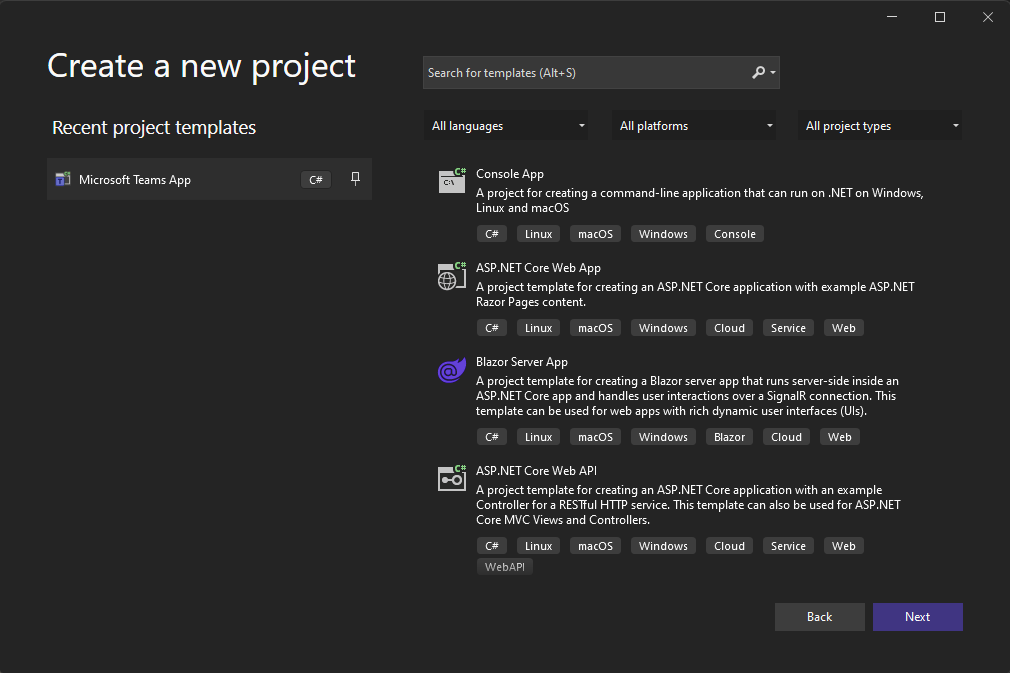
This will create a new Teams App project, and you can even choose if you only want it to be a Tab-application, a Bot-application, or both.
Once the project is finished creating all of the files, you’ll probably see some familiarities with a Blazor application. That’s because the Teams Application is a Blazor UI application! There’s also a nice GettingStarted.txt file that details how to run & set up your environment.
Read more →