The project I am working on requires me to deploy our compute solution, .NET and Python, to an Azure service and it should only expose specific endpoints via Azure API Management (APIM). To accomplish this, I have set up some networking services including NSG-rules. The goal is to set up the network boundaries as strict as possible.
One of the things I started with is set up APIM in a subnet, the Container Apps in another subnet and use an NSG
to limit traffic to only use port 443. This is based on the knowledge of my containers and what is mentioned on the overview pages of the Container Apps networking page
.
   ┌─────────────────┐
   │      APIM       │
   │   (Subnet A)    │
   └─────────────────┘
           │
           │ HTTPS Traffic
           │ Port 443
           │
           │ NSG: Allow
           │ Port 443 Only
           │
           ▼
   ┌─────────────────┐
   │  Container Apps │
   │   (Subnet B)    │
   └─────────────────┘
Long story short: This does not work!
When trying to invoke any endpoint on the Container App via the APIM test page I continuously received an error.
Error occured while calling backend service.", “connection timed out: 10.0.6.139:443
As the IP-address is resolved, I know the DNS resolution works. Just a timeout on port 443.
Obviously, I’ve exposed port 443 in my containers. That’s the first thing you should probably validate when running into this issue.
Read more →I have been a long time user of Tailscale
, a very easy to use VPN mesh system, to connect to my home network when I’m not at home. There are other solutions, like NordVPN Meshnet
, but I learned about Tailscale first. It’s especially useful when using your local DNS (PiHole) and taking advantage of the sites blocked by it.
Currently, I’m in the process of self-hosting services a bit more. Relying in (free) cloud services that might be turned on/off at a moment notice or removing features I use is something I’ve seen happen a bit too much lately.
Because of this, I’m running a container of Linkwarden
to act as a ‘Read it later’ or bookmarking service. I was using Omnivore for this, but that service got shut down at some point.
Some of the links I store in Linkwarden might also be interesting for others who might have missed them. I wanted to get a list of these links and share them on my site, which is why there’s now a Weekly Links Archive
. These pages contain all links I find interesting enough to share over here.
Because I’m a firm believer in automation, these pages are created via a GitHub Action workflow.
Read more →My last post was on integrating your Azure App Service with a virtual network (VNet). This post is the other way around. It’s on how to put your App Service in a VNet, or rather, behind a VNet.
If you want to put your Azure App Service inside a VNet, you’ll have to look for the App Service Environment (ASE). This is an offering of dedicated machines that are placed inside a VNet and you’re paying a rather hefty fee for this. While I like the concept, I think it’s quite expensive for most scenarios. Sure, an ASE has its uses, but most customers and projects I’ve come across don’t need it for the current price.
There is one thing that most customers DO want, protecting their services from the outside world. The public cloud, like Azure, is a PUBLIC cloud. By default, anyone can access your services.
Lucky for us, most Azure services have rather decent protection and can also be integrated into a virtual network, though some need an additional price/service tier to make it possible. The same goes for Azure App Services. For quite some time now it is possible to add an access restriction that only allows traffic from a specific virtual network (VNet).
Read more →It’s always a good idea to secure the resources in your Azure subscriptions. One way to do this is by using virtual networks. In a lot of cases, you will put SQL Azure servers, storage accounts and, other services in a virtual network. This will make sure the services can’t be accessed from the public internet unless you explicitly say so.
There are many more advantages to putting services in a virtual network, which I won’t be covering in this post.
This post is on how to integrate an App Service to a virtual network.
The different VNet integration types
At this time, there are 2 types of VNet integration for App Services. They are called ‘Regional VNet Integration
’ and ‘Gateway-required VNet Integration
’
If you’re running a relatively simple setup, located in a single region, and don’t require a fancy networking setup, it’s probably a good idea to go with the Regional VNet Integration. This one is rather easy to set up and manage.
With this VNet integration, you can still use NSGs (Network Security Groups), route tables, private endpoints, ExpressRoute, and connect to resources in the same region you’re app is located in.
If there’s a need to connect to one or more VNets in another region, the Gateway-required VNet Integration is the way to go. With this integration your service plan can connect to multiple VNets (each app can only connect to a single one), you can manage your DNS and get to create a point-to-site VPN between the different VNets. This is a bit overkill for most scenarios I’m seeing, but if you’re at a large customer or going global, it makes sense to go with this option.
Read more →While I was setting up a VPN connection to my Azure Virtual Network
I wanted to uncheck the option to use the Default Gateway of the connected network. Normally you’d do this by clicking on the Properties button of the selected protocol.
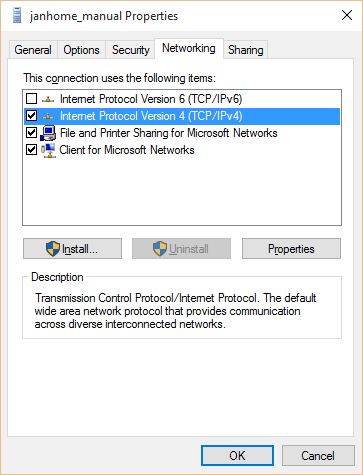
However, there appears to be a bug in Windows 10 and VPN connections for this button which causes the Properties window not to appear.
I have solved this with the help of Todorovic Dragan’s post
about this matter. Over there he states you can change the Default Gateway setting manually.
Just navigate to the folder C:\Users\[YourUsername]\AppData\Roaming\Microsoft\Network\Connections\Pbk and open the file rasphone.pbk file in your favourite text editory.
This file contains all configuration settings of your dial-in connections, like VPN’s. Search for the configuration block of your connection. For me it’s [janhome_manual] and change the option IpPrioritizeRemote to 0.
Changing this setting will disable the checkbox for using the gateway of the remote network.
Read more →One of the reasons for me to create an Azure virtual network
is being able to connect to my development machines in the Cloud from anywhere, without exposing them to the public. In order to do so, all machines have to be added to the virtual network. You also have to select the option to set up a point-to-site VPN connection to the virtual network.
Setting up a point-to-site VPN connection to an Azure virtual network is documented quite well on the Azure documentation pages
. Still, I have come across a couple of problems which I’d like to share.
The first problem I had was executing the makecert program via the Visual Studio Command Prompt on my machine. This tool is really useful when creating a self-signed certificate.
d:\Temp\vpnblog>makecert -sky exchange -r -n "CN=RootJanHome" -pe -a sha1 -len 2048 -ss My "RootJanHome.cer"
'makecert' is not recognized as an internal or external command, operable program or batch file.
Apparently the makecert program isn’t installed by default on your machine when installing Visual Studio 2015. You’ll have to install the Windows 10 SDK and tools in order to get it. To fix it, just Modify your Visual Studio installation and select the option which installs these bits.
Read more →Nowadays it’s possible to create virtual networks within your Azure subscription. This can be very useful for managing your Azure resources within a specific network or setting up a point-to-site or site-to-site connection to expand your current on-premise network.
To me creating a virtual network sounds like a great way to manage my virtual machines and services for development purposes which I’m running within Azure. It will also let me connect to them without exposing stuff to the public internet. I can imagine a virtual network can also be useful for adding multiple build agents, private nuget repositories, a source control server, domain controller, DNS, etc. By moving all of your machines to the cloud, the only thing you’ll need on-premise is a proper router for connecting to the cloud.
In order to create a new virtual network, you’ll have to navigate to the management portal. This feature is available within the classic and new portal. As I prefer the classic portal all screenshots in this post are from within this portal.
The management portal has a menu option called Networks from where you can manage your virtual networks. The image below shows a virtual network called janhome.
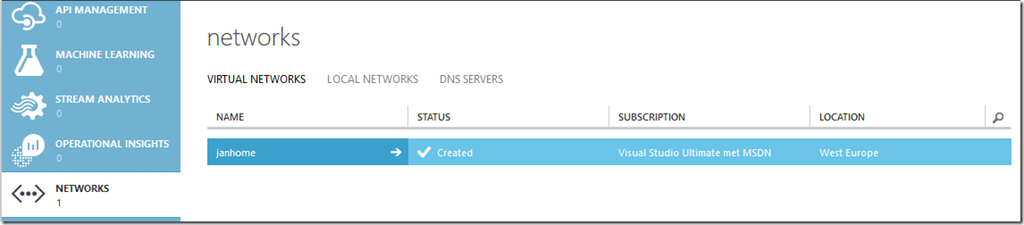
If you want to create a new virtual network by yourself, just select the option from the New menu.
Read more →Sometimes you’re hired by a company which is a bit rigorous on blocking outgoing communication. A security consultant would probably agree on this practice, but most developers won’t. Nowadays a lot of services in the cloud operate on different ports. Azure services don’t always operate on port 80 and 443, hosted noSQL providers have connection strings with (seemingly) random ports, etc. It’s not always easy to get approval to open ports in the company firewall, especially if you’re doing some tests and proof of concept projects. A way to get around this policy is to create a virtual machine in Azure.
When you choose to create a new virtual machine from the gallery you can create an image with Visual Studio pre-installed on it. Even the latest versions are available!
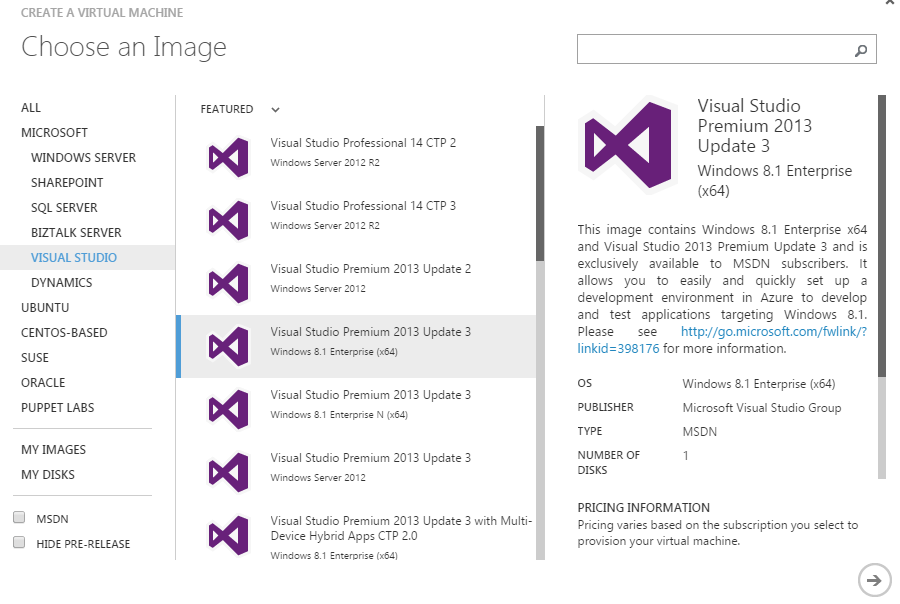
After completing the wizard you’ll have to wait a few minutes for the machine to spin up.
Don’t be happy just yet. When you try to connect to the machine, you’ll probably get a timeout or some other connection problem. This is because the configured RDP port is probably also blocked by your company firewall. A way to fix this is to set the public RDP port to 80 or 443 (which company would block normal HTTP(S) traffic?). This setting can be configured on the Endpoints tab of the virtual machine.
Read more →