Aside from Azure Traffic Manager
, Azure Functions
, and Azure Service Bus
, Azure API Management (APIM)
is one of my favourite services to use in just about any solution.
A useful little nugget for APIM is it’s able to have its own Managed Identity
. You can choose to use a System Managed Identity or a User Managed Identity
. Both options have pros and cons.
When you have configured APIM with a managed identity, this identity can be used to authenticate with the backend services
.
This can be useful in a wide variety of scenarios, but do be careful configuring this. By using this feature, every request to the backend will use the token of the Managed Identity and not of your users or services making authenticated requests to APIM.
As mentioned in the docs, to set this up, you can use the authentication-managed-identity policy for inbound requests.
When doing so, you need to specify which backend resource to use (App URI ID of an App Registration), and the name of the variable to put the token into.
<policies>
    <inbound>
        <base />
        <authentication-managed-identity resource="api://07601ff2-0b86-40f2-b5d9-7f8db33c9fb7/" output-token-variable-name="msi-access-token" ignore-error="false" />
        <set-header name="Authorization" exists-action="override">
            <value>@("Bearer " + (string)context.Variables["msi-access-token"])</value>
        </set-header>
    </inbound>
    <backend>
        <base />
    </backend>
    <outbound>
        <base />
    </outbound>
    <on-error>
        <base />
    </on-error>
</policies>
Very useful in many scenarios, but do be careful of the downsides of using the APIM managed identity to be the authenticated party for backend services.
Read more →There are a ton of useful Azure resources, and one that I don’t read or hear a lot about is Azure Traffic Manager
.
According to the docs:
Azure Traffic Manager is a DNS-based traffic load balancer. This service allows you to distribute traffic to your public facing applications across the global Azure regions. Traffic Manager also provides your public endpoints with high availability and quick responsiveness.
Meaning it’s a very good service to make sure the requests to your backend are routed to the backend that’s able to respond the fastest. I’m using this service for two of my side-projects, the URL-minifier service
, and the Guid service
. The services are deployed to the United States, Europe and Australia, making sure just about everyone will have a similar experience in terms of speed.
An added benefit is you get high availability too, because if one region is down, requests will be routed to another region.
It’s also very cheap to use, about $0,50 per billion requests per month
.
When combined with Cloudflare
as a CDN and frontline DNS, it’s costing me just about nothing to use.
The setup
You can add the Azure Traffic Manager via the Azure Portal and add Endpoints to the resource. There are different type of endpoints you can use.
Read more →Have you ever been on a project where an API returns a response that you can’t, or don’t want to, handle in your own application? Or a customer asks to generate a different response?
Yeah, me neither…
If you ever come across a project, where they want you to return a response like this:
HTTP/1.1 200 OK
Connection: Keep-Alive
Transfer-Encoding: chunked
Content-Type: application/json
Date: Wed, 10 Jan 2024 20:59:21 GMT

{
    "error": 404,
    "status": "NotFound",
    "description": "Could not find the object"
}
This post is for you!
Azure API Management (APIM)
Azure API Management has a lot of features available, one of them is to rewrite requests AND responses. This feature is especially useful if you have to integrate with a third party using a strange type of requests or responses, or when you’re building a platform used by thousands of customers and a couple of them can’t integrate proper with it.
While APIM has a dozen of more cool features, I won’t go into those in this post.
At this moment I’m working on a platform solution and we try to adhere to the most appropriate HTTP response codes for each situation. There are a lot of them
!
Most customers will be able to handle the common status codes, like 200, 400 and 500. However, we use many more. While designing our API we adhere to the Microsoft Azure REST API guidelines
, which I think is quite a good document to start with when creating APIs.
Read more →For those of you who are reading my posts from time to time, you probably know one of my side projects is a URL minifier solution. It’s one of those services which I’ve created to learn about specific Azure services. I’m still making improvements to it and sometimes adding new features to it altogether.
With the focus on AI and large language models in just about everything nowadays, it is time for me to add it to the URL minifier too.
The feature
In essence, a URL minifier only has one job. That is to take a slug and redirect the user to the full URL which belongs to it. Simple enough.
What I like to see in this service, is a summarization feature.
This way, as a user, I don’t need to read the full site but a summary might suffice. This is also a nice ‘Hello World’-implementation to get started in the Open AI and large language models ecosystem.
What to use?
To get started you need a service that offers a large language model, like the public one offered by Open AI
which you might know from ChatGPT.
There’s also the Azure Open AI service
, which offers pretty much the same capabilities. Or at least that is my understanding, and I’m only starting so might be wrong on that statement. I’m using this one because it’s the service which I’ll be using during my daily work too.
Read more →Most people who are professionally working with any of the cloud providers use some kind of infrastructure-as-code solution.
For Microsoft Azure, I’m mostly working with ARM- or Bicep templates to describe the resources necessary. While I’ve written ARM templates for years now, I’m enjoying creating Bicep templates a bit more due to the tooling it offers.
There is at least one downside to using these solutions, and that’s the fact most operations are happening on the Azure control plane. Often times this is good enough, as you only need to deploy some resources, specify some values to the resources, and be done with it. However, there are cases where you also need to invoke some actions which require the creation of data, identities, or trigger some kind of endpoint.
To facilitate this need, there’s a special kind of resource in Azure called deploymentScripts.
What are deploymentScripts?
As it’s mentioned in the docs
, these scripts can be used to perform lots of custom actions, like:
- Add users to a directory.
- Perform data plane operations, for example, copy blobs or seed database.
- Look up and validate a license key.
- Create a self-signed certificate.
- Create an object in Azure AD.
- Look up IP Address blocks from custom system.
The benefits of deployment script:
Read more →
When you need to work with service principals in your Azure environment, you are probably creating them via some script using the az ad sp command.
This works quite well, but these are created with your account. The account you used to log in with the Azure CLI. The same goes when using PowerShell, it’s always running in the context you used to log in. Most of the time your personal or environment administrator account.
There are a several reasons why you probably don’t want or need, these privileges assigned to your account. But you probably still want to create new service principals & assign them roles to specific services or applications. This is where an ‘administrator’ (for lack of a better name) service principal might come in to help.
By having a service principal with enough permissions on a subscription, management group, or tenant
, you can get rid of these permissions on your account.
First, you need to create the ‘administrator’ service principal. I’m using the built-in Owner role for this, but you would be wise to use a custom role with just enough permissions to create users/service principals.
$createdAdminServicePrincipal = az ad sp create-for-rbac --name $administratorServicePrincipalName --role Owner --scopes /subscriptions/$subscriptionId | ConvertFrom-Json
$createdAdminServicePrincipalAppId = $createdAdminServicePrincipal.appId
$createdAdminServicePrincipalPassword = $createdAdminServicePrincipal.password
The appId and password are used to log in later on.
Read more →I’ve been working with the Power Platform for a couple of weeks now, and I’m pretty impressed by the functionality it offers.
Lots of scenarios can be covered by using these tools as a frontend for applications we need to serve to our customers, and there’s also a very nice integration with Microsoft Teams! However, there’s always this special little snowflake that can’t easily be accomplished within a Power App. The keyword over there is ’easily'.
To overcome this, you can also create native Teams applications.
To create these types of applications, you need to install the Teams Toolkit for Visual Studio
or Teams Toolkit for Visual Studio Code
. Both work fine, but when working with something new I prefer using full Visual Studio so that’s what I’ve been using for this first application.
When installed, you’ll have a new project option called Microsoft Teams App.
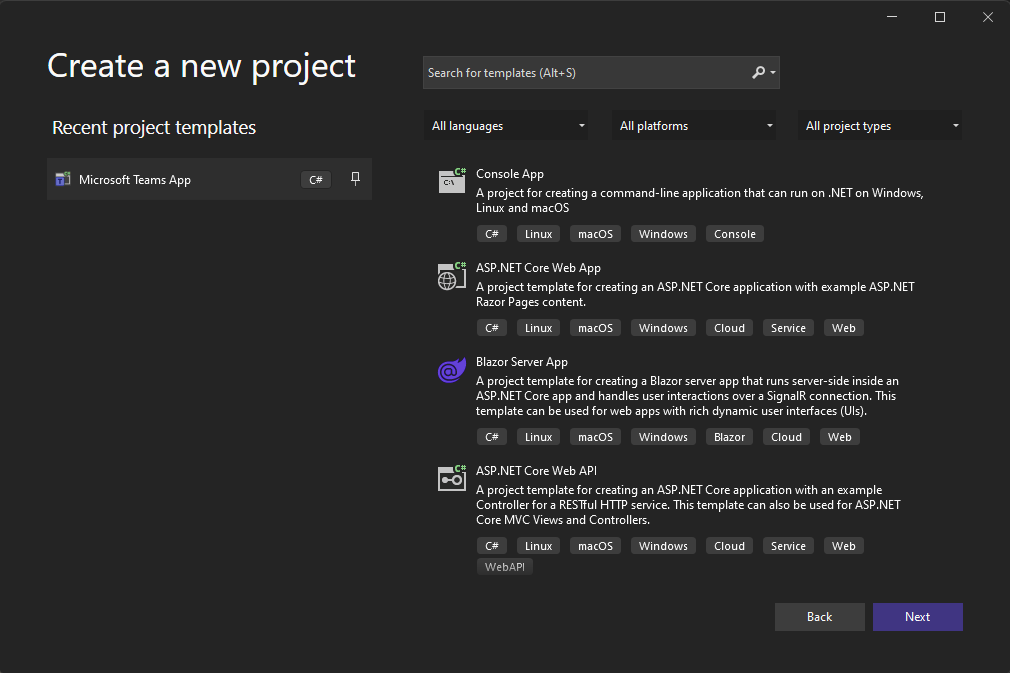
This will create a new Teams App project, and you can even choose if you only want it to be a Tab-application, a Bot-application, or both.
Once the project is finished creating all of the files, you’ll probably see some familiarities with a Blazor application. That’s because the Teams Application is a Blazor UI application! There’s also a nice GettingStarted.txt file that details how to run & set up your environment.
Read more →In my previous post
, I wrote how to create & host private build agents for Azure DevOps running in Azure Container Instances.
One of the reasons for doing so is to eliminate creating build agent VM’s and performant pipelines for my side projects. But, of course, the build agents also need to be as cheap as possible. Azure Container Instances have per-second billing
, which is excellent for build agent containers.
The thing is, I don’t want to turn them on or off manually.
It would be great to have an automated process turn on the agents when necessary and turn them off when done.
I started looking for a trigger or webhook that I can invoke whenever a build or release is put on the queue, but I couldn’t find such a feature in Azure DevOps. However, I did find some functionality in the Azure DevOps REST API
which can be helpful in my scenario.
Azure DevOps REST API
When going through the documentation, you will probably get confused about the terminology quite fast, or at least I did.
At first, I was going through the Pipelines
docs and made some queries, but from this, I didn’t get the responses I expected.
Read more →I’ve been complaining for a while about how slow the hosted build agent in Azure DevOps is. The reason for this is simple, as it’s a shared, free, hosted agent.
A solution for this is to host your agents, for example, via a virtual machine.
I’m not a big fan of maintaining virtual machines, and then it struck me that we now have containers that are sort of the same but easier to manage.
A container is based on a specific image, and every time you spin it up, it uses the same image (baseline). This makes sure no funny business is happening in the container, and manual modifications to the system will are deleted whenever a new container is spun up.
The build agent image
As a .NET developer, we needed Windows agents. Nowadays, we can build our solutions on a Linux machine. A great benefit from this is, Linux images are much smaller compared to their Windows counterparts. Another benefit, which I learned from experience, builds are much faster on a Linux machine. File operations in specific are way faster on a Linux operating system (NuGet/NPM).
There is a step-by-step sample on the Azure DevOps documentation site
on how to create an Azure DevOps build agent, which I’ve also used myself.
Read more →When working in Azure, storing secrets in Key Vault
is a good idea. And to make it better, there’s the Key Vault Reference notation. This feature makes sure no one can read the secret(s) unless someone grants permission.
For storing configuration, values a different service is available, called Azure App Configuration.
Both services are excellent for storing & sharing the values of your cloud services.
Wouldn’t it be great to be able to combine the two? What I mean by that is to use Key Vault references inside your App Configuration. Well, you can!
There is some work involved as you need to set up access to Key Vault from within the application.
Key Vault References in App Configuration
If you’re using the Azure Portal, it’s easy to add a new Key Vault reference in the App Configuration.
Head to the Configuration Explorer and press the Create button.
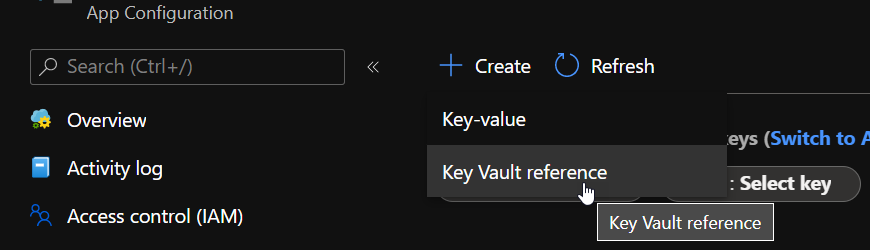
It will bring a small blade to the side of the screen from which you can add the secret with an appropriate name.
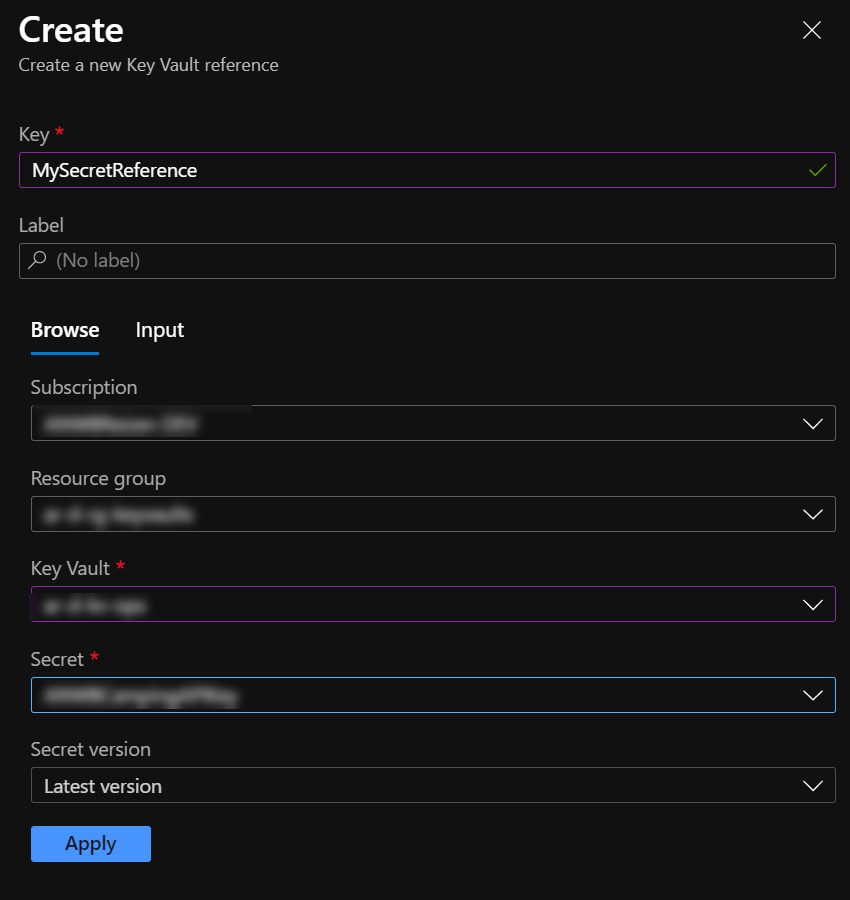
Having finished this, press the Apply button, and you’ll see the reference added and visible in the Configuration Manager.
Read more →