The last two posts had me writing about how logging can be implemented in your Azure Functions
and how you can reuse class libraries using a different logging library, like log4net
. You probably already have some logging- and monitoring system in place, but if you’re starting to use Azure Functions (or any other Azure service for that matter), the best tooling to use is Application Insights
, in my opinion. You don’t even have to use Azure services in order to use Application Insights. You can also integrate it with any other on-premise server or client application.
For those of you who aren’t yet familiar with Application Insights, you should check it out immediately! It’s an awesome tool in Azure which enables you to view logging, metrics, exceptions, performance and more of your applications. It’s also possible to create enormous dashboards, reports and alerts, so everything you need in order to monitor your applications. A real must-have for a professional devops team.
Integrate with Azure Functions
Integrating your Azure Functions (Function App) with Application Insights is pretty straightforward.
The easiest way is to integrate is by selecting Application Insights when creating a Function App. Just press On, the location you want it deployed and proceed with creating the Function App. This will make sure the newly created Application Insights instance will be used by your Function App.
Read more →Creating a solution with multiple small services is great of course. It provides you with a lot of flexibility and scalability.
There are however a couple of things you have to think about when designing and developing a solution with multiple services. One of the things you need to figure out is how to implement proper logging. For an actual production system you need to have this in place in order to monitor and debug the overall solution.
We, developers using Azure Functions, are already blessed with some logging mechanisms and tools provided out of the box! The out of the box stuff is pretty basic, but it gets the job done and will make your life much easier when the need arises to analyze a production issue.
Logging in your function
When first creating your Azure Function you will probably see a parameter being passed in your Run method called log.
public static class Function1
{
    [FunctionName("Function1")]
    public static async Task<HttpResponseMessage> Start(
        [HttpTrigger(AuthorizationLevel.Anonymous, "get", Route = null)]
        HttpRequestMessage req,
        TraceWriter log)
    {
        log.Info("C# HTTP trigger function processed a request.");
        // Logic
    }
}
This log-parameter can be used to do some simple logging inside your Azure Function. When invoking this function you’ll be able to see the specified log entry in your console.
Read more →In my previous post
I’ve described how to use Application Insights and use it within your new web application. Most of us aren’t working in a greenfield project, so new solutions have to be integrated with the old.
The project I’m working on uses log4net
for logging messages, exceptions, etc. In order for us to use Application Insights, we had to search for a solution to integrate both. After having done some research on the subject we discovered this wasn’t a big problem.
The software we are working on are Windows Services and Console Applications, so we should not add the Application Insights package for web applications
. For these kind of applications it’s enough to just add the core package
to your project(s).

Once added, we are creating the TelemetryClient in the Main of the application.
private static void Main(string[] args)
{
	var telemetryClient = new TelemetryClient { InstrumentationKey = "[InstrumentationKey]" };
	/*Do our application logic*/
	telemetryClient.Flush();
}
You will notice we are setting the InstrumentationKey property explicitly. That’s because we don’t use an ApplicationInsights.config file, like in the web application example
and this key has to be specified in order to start logging.
This final flush will make sure all pending messages will be pushed to the Application Insights portal right away.
Read more →Some time ago the Application Insights became available as a preview in the Azure portal. Application Insights helps you monitor the state of an application, server, clients, etc. As said, it’s still in preview, but it’s rather stable and very easy to use and implement in your applications.
The documentation is still being worked on, but with all the getting started guides
on the Microsoft site you can kick start your project with it in a couple of minutes.
The main reason for me to dig into Application Insights is because we still had to implement a proper logging solution for our applications which are migrating to the Azure Cloud. As it happened, Application Insights just became available at the time and because of the tight Azure integration we were really eager to check it out (not saying you can’t use it with non-Azure software of course).
If you want to start using Application Insights, the first thing you will have to do is creating a new Application Insights application. You will be asked what type of application you want to use.
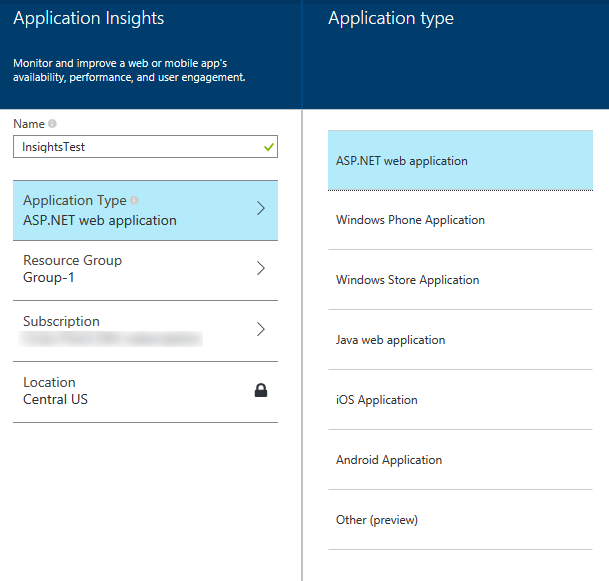
It’s wise to select the proper application type over here, because a lot of settings and measuring graphs will be set for you depending on the choice made over here. For this example I’ll choose the ASP.NET web application. After having waited for a few minutes the initial (empty) dashboard will be shown.
Read more →