I started working on some internal web applications for a customer. For these types of applications, it makes a lot of sense to use Azure Active Directory to authenticate users and use their AAD groups/roles to authorize them on specific pages.
I wanted to authorize users by the AAD groups they are placed in. Some users can access Production data, while others are only allowed to access data from the Test environment, all based on the groups they are in. Because this is already configured by our system administrators, I want to use these groups for my application(s) also.
This sounds easy enough, and it is, but you have to do some manual work in Azure Active Directory to make this possible. It took me too much time for my liking, so I hope this post helps others (and myself) in the future.
One of the first things you need to do is create a new App Registration in the AAD and give it permission to User.Read.All to read the users’ claims.
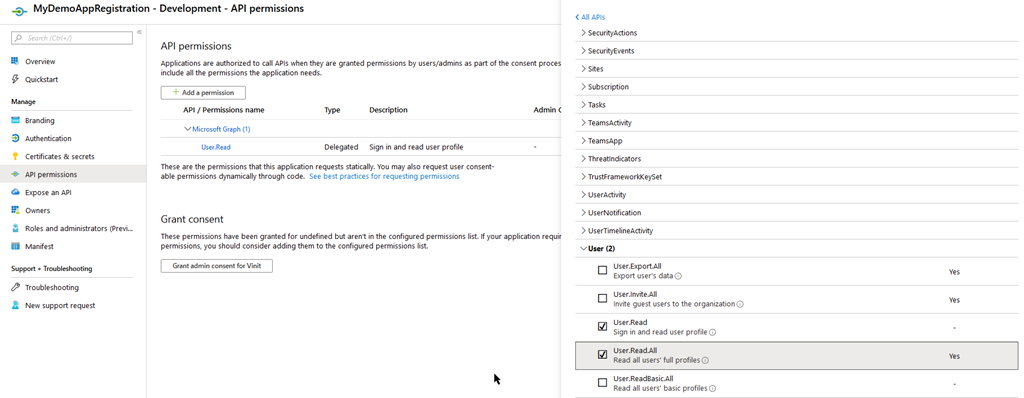
This requires consent from your Administrator, so make sure they are available or you have enough permissions yourself to do this.
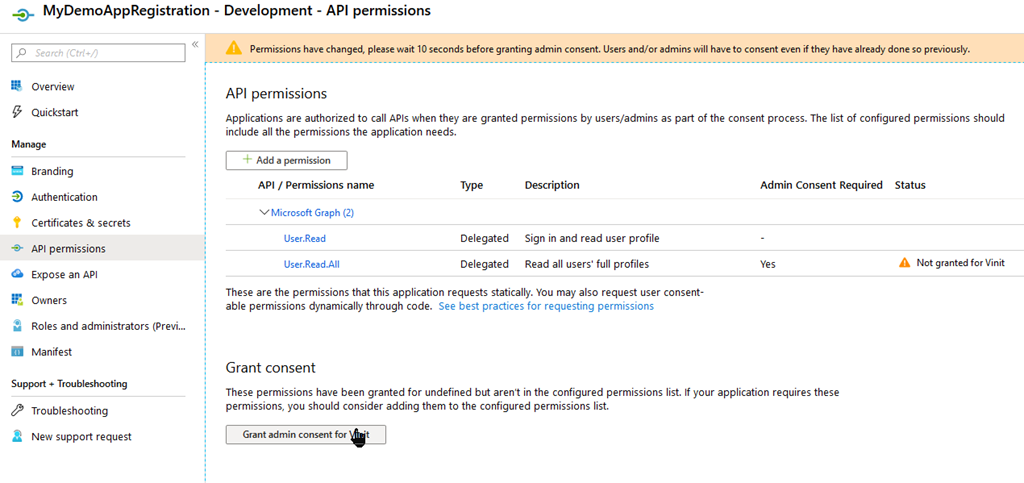
When this is set up correctly, head to the Manifest blade.
Read more →A couple of weeks ago I was busy creating some proof of concept applications using Blazor, which was still labeled preview at the time.
To get all of this deployed and working in an Azure App Service, I needed the preview .NET Core runtime installed. An App Service is a PaaS offering, which means you don’t have any influence on what version of the software gets installed on the underlying system.
Lucky for me, there’s a site extension which enables us to install the latest .NET Core version on an App Service.
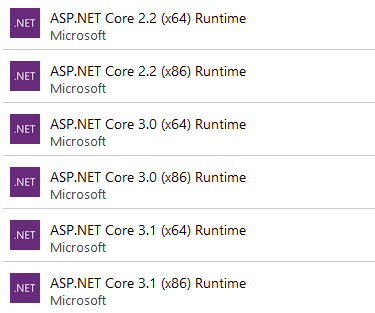
At the time of this blogpost, the 3.0 runtime still isn’t installed on App Services and the 3.1 runtime is still in preview. However, with this extension, you can install whatever you like and use the new features.
It’s, of course, also possible to install these extensions via an ARM template. The following excerpt installs the 3.0 x64 runtime to your App Service.
{
"type": "siteextensions",
    "name": "AspNetCoreRuntime.3.0.x64",
    "apiVersion": "2015-04-01",
    "location": "[resourceGroup().location]",
    "properties": {
        "version": "[variables('aspnetcoreVersion')]"
    },
    "dependsOn": [
        "[resourceId('Microsoft.Web/Sites', variables('webAppServiceName'))]"
    ]
}
As you can see I’m still stating which aspnetcoreVersion I want installed. With this property you can specify which Preview or RC version you need installed.
A very useful extension to use if you want to be on the latest runtime or if it takes too long for your liking for the App Services team to update the .NET version on the underlying systems.
Read more →With the new Windows Terminal available I’ve been searching on how to upgrade my console experience. I see a lot of people improving their terminal to show important information, like which Git branch you are working on, which Azure subscription, the actual location on disk, etc.
A couple of months ago I came across Brad Wilson his post on the matter
and I like the way his terminal looks. His post, is rather straightforward, but there was some information missing. Well, ‘missing’ isn’t the correct word. In his post he has assumed some prerequisites which I hadn’t set up on my machine(s).
For reference sake, I’ll repeat some steps over here from Brad his post and add some of myself which were unclear to me.
First of all, you need to install posh-git
. This is a small PowerShell module which integrates Git in PowerShell. It’s very useful and now that I know of it I advise everyone to use it!
I did have some versioning issues when installing this though. The first time when I ran the command PS> install-module posh-git I got the following message(s).
PowerShellGet requires NuGet provider version '2.8.5.201' or newer to interact with NuGet-based repositories. The NuGet provider must be available in 'C:\Program Files\PackageManagement\ProviderAssemblies' or 'C:\Users\jan\AppData\Local\PackageManagement\ProviderAssemblies'. You can also install the NuGet provider by running 'Install-PackageProvider -Name NuGet -MinimumVersion 2.8.5.201 -Force'. Do you want PowerShellGet to install and import the NuGet provider now?

[Y] Yes  [N] No  [S] Suspend  [?] Help (default is "Y"): y

Untrusted repository

You are installing the modules from an untrusted repository. If you trust this repository, change its InstallationPolicy value by running the Set-PSRepository cmdlet. Are you sure you want to install the modules from 'PSGallery'?

[Y] Yes  [A] Yes to All  [N] No  [L] No to All  [S] Suspend  [?] Help (default is "N"):
Eventually, I was able to get this to work, but I had to update my PowerShellGet repository first. As you can see from the script below, this also failed.
Read more →A couple of weeks ago I’ve passed both the AZ-300 and AZ-301 exams. You’re required to pass both of these exams in to get the Azure Solutions Architect Expert certification. After posting a tweet I got a lot of responses asking if I had any pointers on what to learn. Instead of responding to each person individually it makes more sense to share what I’ve used to study and hopefully it’s helpful to others also.
When going through the list of [Skills measured](https://www.microsoft.com/en-us/learning/azure-solutions-architect.aspx?WT.mc_id=AZ-MVP-5003246) you quickly notice this certification covers a lot of stuff in the Azure ecosystem. Everything from Azure Active Directory to Azure App Services and from storage accounts to multi-factor authentication for users. You need to know everything!
At my day job I’m doing a lot of stuff within the Azure ecosystem but mainly focus on PaaS solutions, like App Services, Functions, Logic Apps, Service Bus, Event Grid, etc. All of the other stuff like IaaS, CaaS, security, AAD, hybrid solutions, site recovery are topics I don’t have a lot of experience with.
So while there might be stuff I didn’t know in the PaaS ecosystem, I knew I had to focus my learning on all of the other stuff as most of it is/was a black box to me.
Read more →If you’ve read my earlier post on authentication of actions invoked in a Microsoft Teams MessageCard
, you’ve probably seen the only useful information we get in the user’s token is the Object Id (oid).
{
  "iat": 1560799130,
  "ver": "STI.ExternalAccessToken.V1",
  "appid": "48afc8dc-f6d2-4c5f-bca7-069acd9cc086",
  "sub": "bc6c3ca0-5acd-4cd4-b54c-f9c83925e7e3",
  "appidacr": "2",
  "acr": "0",
  "tid": "4b1fa0f3-862b-4951-a3a8-df1c72935c79",
  "oid": "b26c3c10-5fad-4cd3-b54c-f9283922e7e2",
  "iss": "https://substrate.office.com/sts/",
  "aud": "https://serverlessdevops.azurewebsites.net",
  "exp": 1560800030,
  "nbf": 1560799130
}
While this is nice, it doesn’t really tell us much.
However, because we have the object id, we can use this to query the Azure Active Directory to check up on who this user actually is and implement some authorization logic with it.
However, when I was searching for a workable piece of code describing how to access AAD and retrieve users from it, the information was�not very useful. In the end, I have found something workable and I’ll be sharing my solution in this post.
How to set up my application in AAD
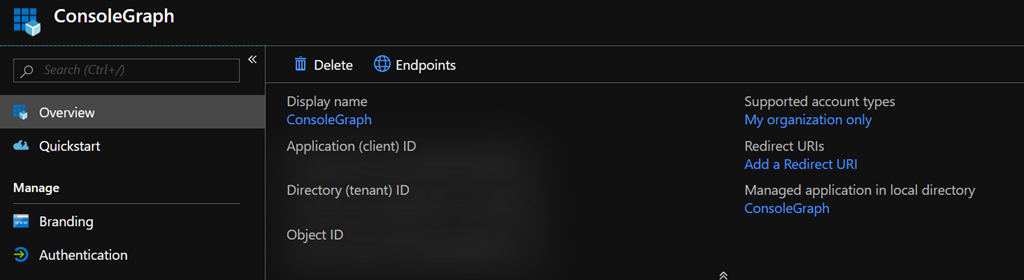
In order to do something inside AAD, you need to have an identity over there. Since we’re creating an application (console or API), we need to create an Application Registration.
To do this, navigate to your Azure Active Directory blade inside the Azure Portal and create a new App registration. I’ve called mine ConsoleGraph because I’m creating a console application to query my AAD.
Read more →Being able to create Message Cards or Actionable Messages in Microsoft Teams via a Logic App
or an Azure Function
is great. Especially if you can use this to invoke logic on your API and update the message in the Teams channel
.
However, you don’t want everyone to invoke a management API endpoint you’ve exposed to ‘do stuff’ in your cloud environment. Normally, you’d want to authenticate if the user pressing the button (read: invoking the endpoint).
Lucky for us, this is very doable when invoking the endpoint via a Teams MessageCard/Actionable Message.
The token
Because Microsoft Teams is part of the Office 365 suite, you will be logged in as a user on the tenant. Therefore, the software has a user context and is able to pass this along to your API via a JWT Bearer token
.
If you log in to the web client of Microsoft Teams (https://teams.microsoft.com
) with your favorite browser you’ll be able to find the token which belongs to you.
In order to test this, I’ve created a new MessageCard in my Teams channel with 1 potentialAction which will invoke an Azure Function.
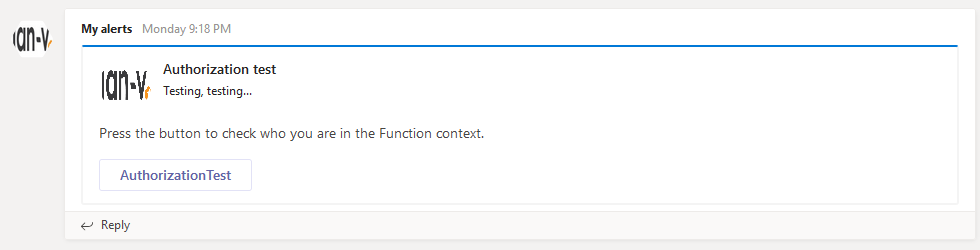
If you open up the network tab of your browser’s Developer Tools and press the AuthorizationTest button you’ll see the request is made to a Teams endpoint called executeAction with a bearer token in the Authorization header.
Read more →In my latest post, I’ve shown you how you can use Azure Functions in your Microsoft Teams flow to handle errors in your environment
. This stuff works great in a couple of projects I’ve worked on, but what would be even more awesome is to reply to a message in Teams when an action has completed after a button is pressed.
Well, replying & modifying the original message with a status update is quite possible and I’ll show you how in this post.
How do I send a reply to Microsoft Teams?
In the image below you can see a message having posted on my Teams channel and a reply is posted.
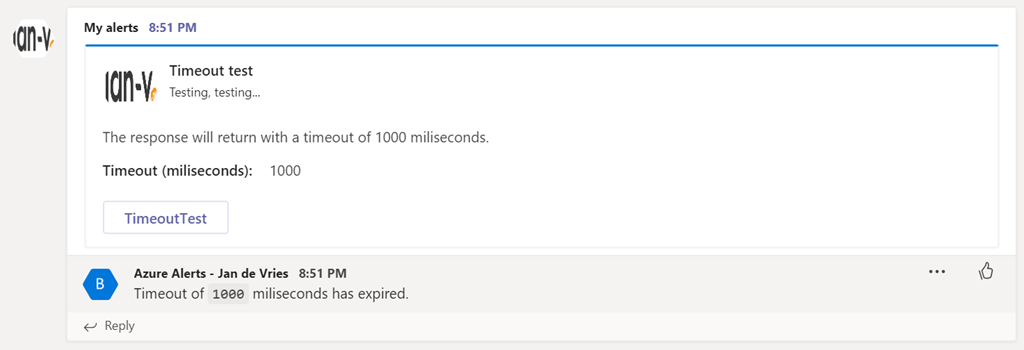
This reply has been sent from my Azure Function. If you want to do this, you need to send a HttpResponseMessage with a status code 200 and a specific header value. This header value is CARD-ACTION-STATUS and the value will be the message which you will see in the reply.
The code for this will look something similar to the following.
public static async Task<HttpResponseMessage> Run(
	[HttpTrigger(AuthorizationLevel.Function, "post", Route = null)] HttpRequest req,
	ILogger log)
{
	// Do your stuff...

	var result = new HttpResponseMessage
	{
		Headers =
		{
			{ "CARD-ACTION-STATUS", $"Timeout of `{request.Timeout}` miliseconds has expired."},
		},
		StatusCode = HttpStatusCode.OK
	};


	return result;
}
That’s all there is to it in order to send a single reply to your message.
Read more →So, a couple of weeks back I wrote about leveraging the power of Logic Apps to retrieve Alerts from within your Azure ecosystem and send them to Microsoft Teams. This works great and a fellow Azure MVP, Tom Kerkhove
, has enhanced the Logic Apps Template when handling Azure Monitor events
.I’m starting to become a pretty big van of Logic Apps, but there are some (obvious) downsides to it.
First, they live inside your Azure Portal. You can create, modify and export them from within the Portal, which is great, unless you want to integrate them in your ‘regular’ development cycle.The export feature enables you to copy/paste the Logic Apps to your ARM templates, but this is suboptimal in my opinion. There’s also the Azure Logic Apps Tools for Visual Studio
extension, which makes the integration a bit better, but it still feels a bit quirky.Another downside is the ’language’. When exporting a Logic App you’ll be seeing a lot of JSON. While there might be a good reason for this, it’s not something I like working in and create (complex?) workflows.If you can overcome, or accept, these downsides I’d really advice you to look into Logic Apps. If not, well read on!
Read more →Stuff I like from this year’s Build conference
.NET Core 3 Preview 4
can be downloaded right now. This new preview brings the Chart control to .NET Core & some WPF improvements. What I like most is the versioning change and the Tiered Compilation
. I’m still reading up on this second thing, but it sounds awesome a major reason to upgrade to the latest & greatest! Some more information on TC can be found on a Microsoft blog post dedicated to it: https://devblogs.microsoft.com/dotnet/tiered-compilation-preview-in-net-core-2-1/
The Docker improvements are nice also, but I’m not using it a lot these days so don’t have much of an opinion on these things.
Something which struck me as odd is the announcement of .NET 5
, which is .NET Core vNext. The explanation of this version number clears things up a bit though.
We’re skipping the version 4 because it would confuse users that are familiar with the .NET Framework, which has been using the 4.x series for a long time. Additionally, we wanted to clearly communicate that .NET 5 is the future for the .NET platform.
From what I gather from this we can all (.NET Framework and .NET Core) to .NET 5 without much hassle. I don’t know if this is true, but it would make sense from my perspective.
Read more →I’ve written about empowering your Teams with Azure Functions
a while back, but this isn’t the only way to create value. You can also use Azure Logic Apps
.
Logic Apps are a way to express powerful integrations with (several different) systems in a visual workflow based way. It has a lot of similarities with other (Microsoft) workflow systems from the past, so it should strike very familiar to most (Enterprise) developers.
Being a visual workflow solution, it doesn’t warm the heart of most developers. However, the world doesn’t consist solely of developers and this solution being visual is a very big advantage if you’re not a coder or like to deliver value instead of just more code.
First step
The first step you need (or actually, WANT) to take is create a Webhook connector on a channel. You can check my previous post
on how to do this.
Posting to this channel has to be done in a similar way. You will still need to post some JSON in a predefined format to this webhook.
Next step: Setting up Alerts
In order to make your DevOps process a bit easier, it’s very useful to leverage the power of Application Insights and Alerts. For this to work, you need to know what metrics you actually want to be alerted for. I’m going to assume you already have some monitoring in place with appropriate metrics. If not, you should definitely define some. They can be tuned afterward.
Read more →