When you need to work with service principals in your Azure environment, you are probably creating them via some script using the az ad sp command.
This works quite well, but these are created with your account. The account you used to log in with the Azure CLI. The same goes when using PowerShell, it’s always running in the context you used to log in. Most of the time your personal or environment administrator account.
There are a several reasons why you probably don’t want or need, these privileges assigned to your account. But you probably still want to create new service principals & assign them roles to specific services or applications. This is where an ‘administrator’ (for lack of a better name) service principal might come in to help.
By having a service principal with enough permissions on a subscription, management group, or tenant
, you can get rid of these permissions on your account.
First, you need to create the ‘administrator’ service principal. I’m using the built-in Owner role for this, but you would be wise to use a custom role with just enough permissions to create users/service principals.
$createdAdminServicePrincipal = az ad sp create-for-rbac --name $administratorServicePrincipalName --role Owner --scopes /subscriptions/$subscriptionId | ConvertFrom-Json
$createdAdminServicePrincipalAppId = $createdAdminServicePrincipal.appId
$createdAdminServicePrincipalPassword = $createdAdminServicePrincipal.password
The appId and password are used to log in later on.
Read more →I’ve been working with the Power Platform for a couple of weeks now, and I’m pretty impressed by the functionality it offers.
Lots of scenarios can be covered by using these tools as a frontend for applications we need to serve to our customers, and there’s also a very nice integration with Microsoft Teams! However, there’s always this special little snowflake that can’t easily be accomplished within a Power App. The keyword over there is ’easily'.
To overcome this, you can also create native Teams applications.
To create these types of applications, you need to install the Teams Toolkit for Visual Studio
or Teams Toolkit for Visual Studio Code
. Both work fine, but when working with something new I prefer using full Visual Studio so that’s what I’ve been using for this first application.
When installed, you’ll have a new project option called Microsoft Teams App.
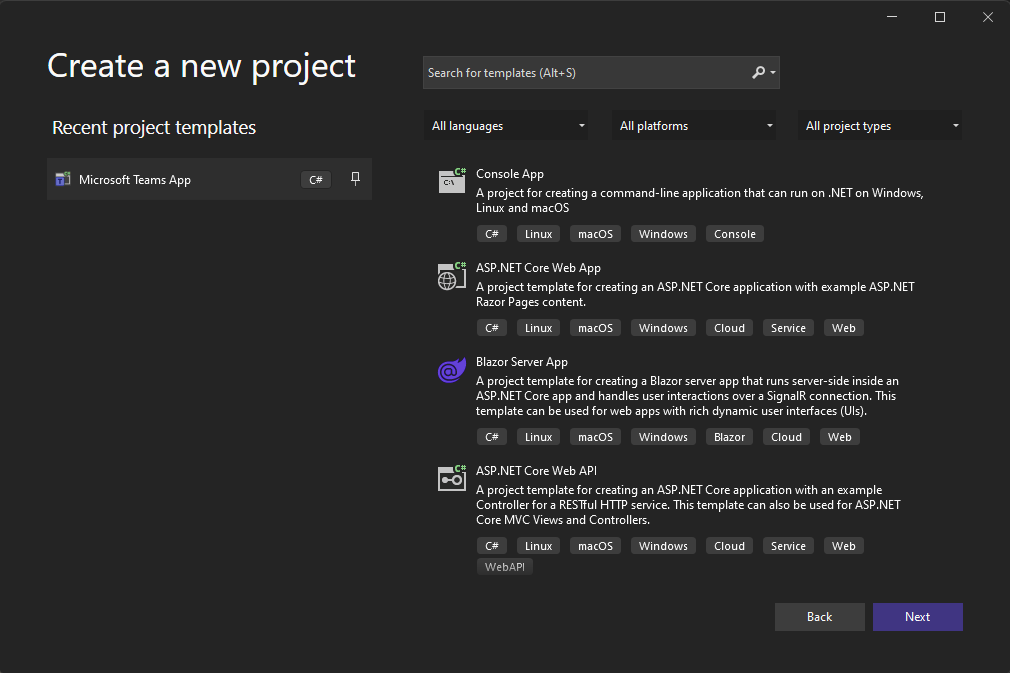
This will create a new Teams App project, and you can even choose if you only want it to be a Tab-application, a Bot-application, or both.
Once the project is finished creating all of the files, you’ll probably see some familiarities with a Blazor application. That’s because the Teams Application is a Blazor UI application! There’s also a nice GettingStarted.txt file that details how to run & set up your environment.
Read more →It so happens a lot of people are mixing their work- and personal development machines, especially when doing side projects in their spare time which are somewhat work-related.
At least, this is the case for me as I’m using GitHub both for work & personal stuff nowadays.
On my personal machine, I’ve set up Git to work with my personal e-mail address & SSH keys.
On my work machine, I’ve set it up to run with my work account.
Because of this, whenever I commit a change this configured account will be used and I don’t want my corporate account to show up in my side projects, and vice-versa.
Lucky for me, there are a couple of people on Stack Overflow who have similar setups and were also wondering how to fix this. I’m quite happy with the answers posted to Kevin Whitaker’s question
.
There are answers on how to do this with SSH keys
, which is probably the best option.
However, most repositories on my machine are set up with HTTPS, so the answer from Greg Leszek
is the best for my scenario.
He mentions that you first have to change the origin URL to have your username in the URI if this isn’t the case already.
Afterward, you can set the user details you need to use for this repository.
Read more →In my previous post
, I wrote how to create & host private build agents for Azure DevOps running in Azure Container Instances.
One of the reasons for doing so is to eliminate creating build agent VM’s and performant pipelines for my side projects. But, of course, the build agents also need to be as cheap as possible. Azure Container Instances have per-second billing
, which is excellent for build agent containers.
The thing is, I don’t want to turn them on or off manually.
It would be great to have an automated process turn on the agents when necessary and turn them off when done.
I started looking for a trigger or webhook that I can invoke whenever a build or release is put on the queue, but I couldn’t find such a feature in Azure DevOps. However, I did find some functionality in the Azure DevOps REST API
which can be helpful in my scenario.
Azure DevOps REST API
When going through the documentation, you will probably get confused about the terminology quite fast, or at least I did.
At first, I was going through the Pipelines
docs and made some queries, but from this, I didn’t get the responses I expected.
Read more →I’ve been complaining for a while about how slow the hosted build agent in Azure DevOps is. The reason for this is simple, as it’s a shared, free, hosted agent.
A solution for this is to host your agents, for example, via a virtual machine.
I’m not a big fan of maintaining virtual machines, and then it struck me that we now have containers that are sort of the same but easier to manage.
A container is based on a specific image, and every time you spin it up, it uses the same image (baseline). This makes sure no funny business is happening in the container, and manual modifications to the system will are deleted whenever a new container is spun up.
The build agent image
As a .NET developer, we needed Windows agents. Nowadays, we can build our solutions on a Linux machine. A great benefit from this is, Linux images are much smaller compared to their Windows counterparts. Another benefit, which I learned from experience, builds are much faster on a Linux machine. File operations in specific are way faster on a Linux operating system (NuGet/NPM).
There is a step-by-step sample on the Azure DevOps documentation site
on how to create an Azure DevOps build agent, which I’ve also used myself.
Read more →I was at the office a couple of weeks back, browsed some of my favorite news sites, and was shocked by what I saw.
Ads, ads everywhere!
At home, I’ve been running Pi-hole
on my Synology NAS in a container for months now. I hardly see any (annoying) advertisements on any of my devices because of this.
Now don’t get me wrong, I don’t mind seeing a couple of relevant ads. The thing that annoys me, though, is ads causing content to jump around on the page. Those ads are one of the reasons I’m running Pi-hole.
Being a developer, I have Docker installed on my desktop. Because of this, I can run Pi-hole in a container on my development laptop and set this container up as my local DNS.
While this is a bit more work than installing your adblocker of choice in a browser, it is more fun.
Creating the Pi-hole container
The most important part of this post is the following docker-compose.yml file.
It will create a new container for you based on the latest pi-hole image available. Then, the necessary ports are forwarded to/from the container, and I’m using Cloudflare as my public DNS.
You might want to change the WEBPASSWORD to something else as pihole.
Read more →When working in Azure, storing secrets in Key Vault
is a good idea. And to make it better, there’s the Key Vault Reference notation. This feature makes sure no one can read the secret(s) unless someone grants permission.
For storing configuration, values a different service is available, called Azure App Configuration.
Both services are excellent for storing & sharing the values of your cloud services.
Wouldn’t it be great to be able to combine the two? What I mean by that is to use Key Vault references inside your App Configuration. Well, you can!
There is some work involved as you need to set up access to Key Vault from within the application.
Key Vault References in App Configuration
If you’re using the Azure Portal, it’s easy to add a new Key Vault reference in the App Configuration.
Head to the Configuration Explorer and press the Create button.
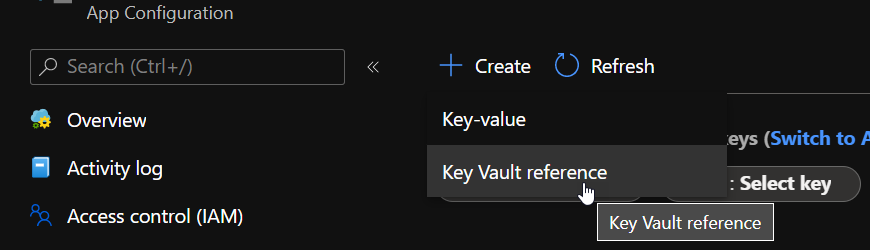
It will bring a small blade to the side of the screen from which you can add the secret with an appropriate name.
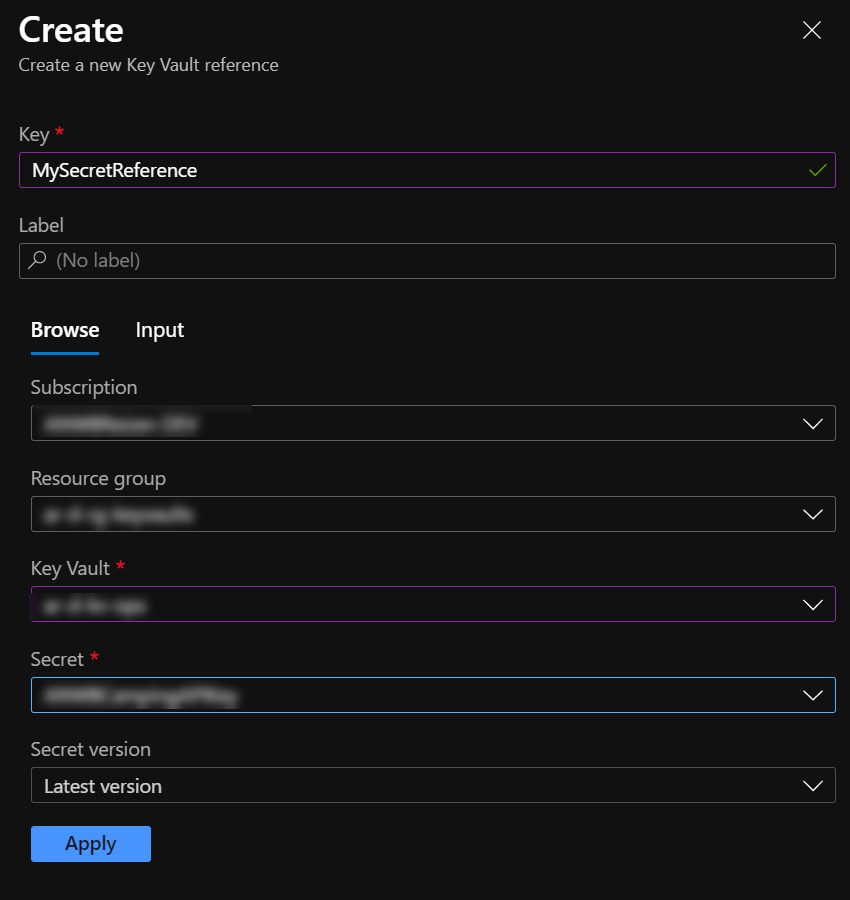
Having finished this, press the Apply button, and you’ll see the reference added and visible in the Configuration Manager.
Read more →It has been quite a while since I’ve sat behind my computer.
The reason for it? Well, I’ve had a bad case of a bacteria infection. This infection started sometime early in January
.
A couple of days later, I was in the hospital, where the doctors diagnosed me with the infection. It was so severe; they had to perform surgery on my left arm immediately to cleanse it. Of course, I also needed lots and lots of antibiotics to get rid of the bacteria.
After spending 10+ days in the hospital, I was released and recovered further at home. Physical recovery was important as standing up was painful and walking even more.
It has been more than three months since then, and I’m finally fit enough to start working at my desk again.
I’m glad to be able to do some development work again and catch up on all the news I’ve missed in the past couple of months.
I won’t create lots of new content just yet, but I hope to do this again soon. As I mentioned in my YouTube Channel trailer
, and earlier blogpost
creating short videos on Azure services is on my agenda!
Read more →It’s the time of the year when you see lots of bloggers & content creators making a post, video, or something else to reflect on the past year and make predictions for the next.
Well, this year, I’m one of them!
We all know a lot of stuff has happened in the past year. I’m trying to keep a positive mind and not focus too much on life’s negative things. Focussing on the good things in life makes me much happier and energetic.
Reflecting back
It looks like the 2020 post never got published (or I forgot to create it), so I can’t check if I met my goals.
What I do know is having said to my family:
This year, I’ll be home a bit more and not travel to lots of conferences!
Guess what? I’ve managed to accomplish this, even more as I had expected in January 2020!
Because I got to work a lot from home, there wasn’t any commute anymore, and I also didn’t have to travel to conferences, meetups, or any other gathering type. This meant a lot of (quality) family time, which is the best way to spend free time, in my opinion.
Sure, not seeing all of my tech- and conference friends in-person for over a year isn’t fun, but I know this will soon be sorted out.
In the meantime, I had the time to enjoy seeing my kids (2 & 4) growing up and playing with them a lot more.
Read more →I’m busy locking down my web applications
in Azure and using my learnings on the day job. One way to do this is by making sure all requests are authenticated, and roles are granted accordingly
.
Using the correct issuer
While checking out the token, I found the issuer (iss) contains the following value https://sts.windows.net/[tenantid]/.
{
  "aud": "f4c42c68-c881-4320-815c-1ca4f32cb6c5",
  "iss": "https://sts.windows.net/[tenantid]/",
  "iat": 1605812881,
  // all other properties of your token
}
The issuer is valid, but not the one I was expecting. When navigating to the metadata endpoint of your tenant (https://login.microsoftonline.com/[tenantid]/v2.0/.well-known/openid-configuration), you will see the issuer should be "issuer":"https://login.microsoftonline.com/[tenantid]/v2.0".
After doing a couple of minutes of research on the matter, it looks like the sts-endpoint is the Azure Active Directory v1 issuer. To make your App Registration work with the AAD v2 endpoints, you need to make a small change.
Changing the manifest
If you’ve read my other post, you’re probably already aware of the Manifest blade. This blade enables us to make changes to the App Registration, which don’t get exposed via the UI (yet). Changing your application to use the v2 endpoints is one of these changes. At the top of the file, there is an option called accessTokenAcceptedVersion. By default, this value is null.
Read more →