
Share Dev Container logins across Git worktrees
I recently read this post from my colleague Marnix on using Dev Containers to isolate your service logins for a project
. This is especially useful for Azure and GitHub accounts, as they are configured per system in the ~/.azure and ~/.config/gh folders.
As a consultant, I’m often hopping between multiple customers. Even someone working solely for one company might have side projects in different environments. This system configuration is often suboptimal and requires you to think about where you’re logged in and switch around. Marnix has done a great job describing why Dev Containers are a great solution to this problem, so I won’t repeat that here.
One annoying aspect is working with worktrees. Currently, coding agents default to Git worktrees, so you can work on multiple things at the same time without conflicts. This is great, but they create a copy of the repository in a random folder. This also creates a new Dev Container for you to use, which means you have to log in again. Having to log in to every Dev Container is quite cumbersome, and I don’t like that.
What I want is a shared login for my repositories that works for all the worktrees I have.
After playing around with this feature, I found out that this is quite possible!
Mount to a shared location
In my first iteration, I created a folder at ~/code/container-configuration with subfolders such as personal, customer-a, customer-b, etc.
In my devcontainer.json, these folders were mounted like this:
{
    "mounts": [
        "source=~/code/container-configuration/personal/.azure,target=/home/vscode/.azure,type=volume",
        "source=~/code/container-configuration/personal/.github,target=/home/vscode/.config/gh,type=volume"
    ],
}
I should say, this works quite well! After logging in to Azure and GitHub, I could see the files being created properly, and when creating worktrees or rebuilding the container, I stayed logged in to the correct environment.
However, this does not scale well when working in a team. It would require each team member to use my folder convention. Also, it doesn’t work well across multiple operating systems.
Mount to a named volume
After some back-and-forth with this, I stumbled across the concept of “named volumes”. I knew this from regular Docker configurations and learned that this also works well with Dev Containers .
I’ve now changed the above configuration to this:
  "mounts": [
    "source=personal-azure,target=/home/vscode/.azure,type=volume",
    "source=personal-github,target=/home/vscode/.config/gh,type=volume"
  ],
The mounts are using the named volumes personal-azure and personal-github now. For customer-a I have this configured as customer-a-azure and customer-a-github.
In OrbStack, the volumes are listed, and you can navigate to them if you want.
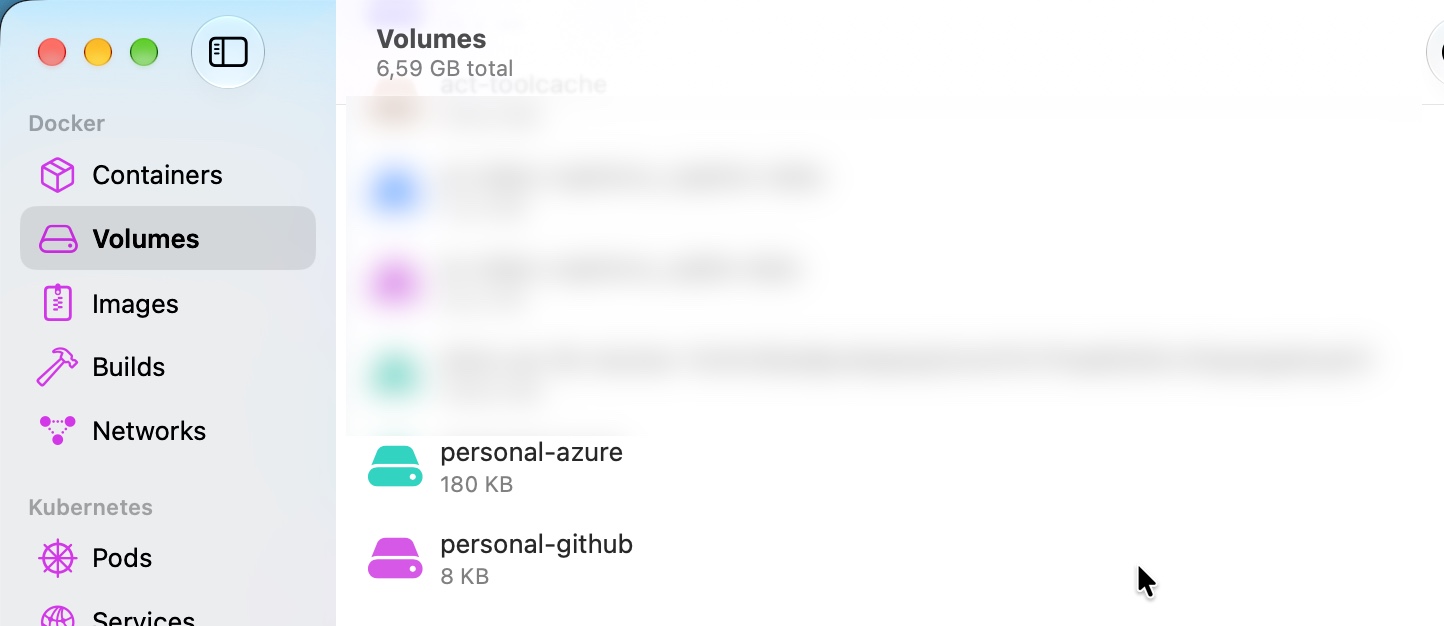
When you log in to your environments, the files are stored in these volumes. This is great, as the same named volumes are used in every worktree for this repository. Therefore, you don’t need to log in or configure everything every time you create a Git worktree.
Using named volumes also scales much better than using a shared folder. Every team member has their own named volumes and can configure them as needed.
Make sure you have permission
I did discover that the vscode user needs ownership permissions for the GitHub folder for some reason.
To accommodate this requirement, I’ve added a small postCreateCommand to the configuration.
{
  "postCreateCommand": "sudo chown -R vscode:vscode /home/vscode/.azure /home/vscode/.config/gh && az version && az bicep version && gh --version && pwsh --version && hugo version && (az account show --query \"user.name\" --output tsv 2>/dev/null || echo \"Azure CLI: not authenticated\") && (gh auth status || echo \"GitHub CLI: not authenticated\")",
}
The .azure folder didn’t need this, but I added the ownership anyway, just to be sure it won’t bite me in the future.
One additional note
You also want a nice terminal in the Dev Container. To set this up, you have to add three dotfiles settings to VS Code.
Specify the repository, the path where the files should be mounted in the container, and the install command (for configuring your ZSH, for example).
{
    "dotfiles.repository": "https://github.com/Jandev/dotfiles",
    "dotfiles.targetPath": "~/dotfiles",
    "dotfiles.installCommand": "install.sh",
}
I’ve got the following three files in there:
.p10k.zsh
.zshrc
install.sh
This isn’t required, but who doesn’t love a nice terminal.
Going forward
I think I’ll be using the Dev Container feature for all my projects now. It isolates customer information quite nicely and makes sure I don’t accidentally work in the wrong environment.
I do need to learn a bit more about the configuration. Just today, I had some trouble running regular development tasks. I also need to configure some of my VS Code extensions to run in the Dev Containers. This is useful, as I can install them per repository and no longer have conflicting extensions.