There are some cool features available in Linux. In an earlier post
I already mentioned the apt-get functionality which is now also offered in Windows via Chocolatey. One of the other cool features is being able to execute something in the terminal as an Administrator by specifying sudo in the command.
Lucky for us Windows people, someone has created a tool which is able to do something similar as the Linux sudo-command. The tool is called Elevate
and can be downloaded from over here: https://code.kliu.org/misc/elevate/
After you have downloaded the zip-file from the website, copy the appropriate executable to your System32-folder and you are good to go!
By specifying the Elevate command in the command prompt, PowerShell window, Windows Search or Run-window the command will now be executed as an Administrator.
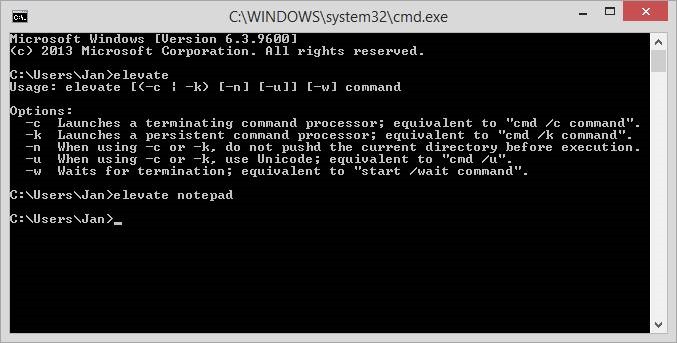
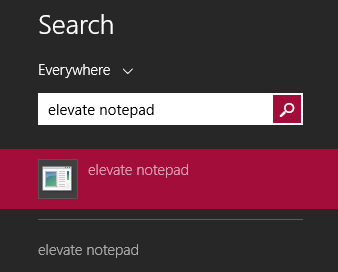
![clip_image002[6]](https://jan-v.nl/Media/Default/Windows-Live-Writer/Doing_D658/clip_image002%5B6%5D.jpg)
Depending on your UAC settings, you are still prompted with the question if you really want to run the application (Notepad) as an Administrator.
I think this functionality could be extremely useful if you want to run specific commands of a script as an Administrator.
Read more →Even though the Windows operating system is one of the best in my opinion, there are always something which is only available in a different OS. For example the apt-get functionality in Linux. I don’t know how this works exactly, but from my basic understanding it’s some kind of repository with a lot of software and libraries which you can download to your device by typing something like the following in a terminal window:
Why this feature isn’t available by default in Windows is a mystery to me.
Quite some time ago, Scott Hanselman blogged about Chocolatey
. Chocolatey is something similar to the apt-get feature from Linux, but now available on a Windows machine. (disclaimer: it’s not really the same, but works for me)
Ever since reading this post I wanted to use this awesome piece of software, but all my systems were already up-to-date and never needed it. As of this week, I’ve started working on a new project. Therefore, a new virtual machine had to be installed and configured. An awesome excuse to start using Chocolatey
!
With Chocolatey you can install all kinds of software, just by typing a command in your Command Prompt or PowerShell window. It will automatically download and install the software for you. The only thing you need to do is wait for the command to finish.
Read more →For a project on the side I’m creating a Web API which has to parse XML requests in a POST. The first method I’ve written looks like this:
[HttpPost]
public HttpResponseMessage IndexPost(RequestModel requestMessage)
{
	return new HttpResponseMessage(HttpStatusCode.Accepted) { Content = new StringContent("This is the POST API response from BusinessPartner!") };
}
To test the new API I’m using the Postman Chrome plugin
. With this plugin you are able to send requests to an endpoint and see what the response is. Of course you can also use Fiddler
for this, but I like the user experience of Postman a bit more.
There were a few problems I encountered during the development of the Web API.
The first problem was this error:
{
    "message": "An error has occurred.",
    "exceptionMessage": "No MediaTypeFormatter is available to read an object of type 'RequestModel' from content with media type 'text/plain'.",
    "exceptionType": "System.InvalidOperationException",
    "stackTrace": "   at System.Net.Http.HttpContentExtensions.ReadAsAsync[T](HttpContent content, Type type, IEnumerable`1 formatters, IFormatterLogger formatterLogger)\r\n   at System.Net.Http.HttpContentExtensions.ReadAsAsync(HttpContent content, Type type, IEnumerable`1 formatters, IFormatterLogger formatterLogger)\r\n   at System.Web.Http.ModelBinding.FormatterParameterBinding.ReadContentAsync(HttpRequestMessage request, Type type, IEnumerable`1 formatters, IFormatterLogger formatterLogger)\r\n   at System.Web.Http.ModelBinding.FormatterParameterBinding.ExecuteBindingAsync(ModelMetadataProvider metadataProvider, HttpActionContext actionContext, CancellationToken cancellationToken)\r\n   at System.Web.Http.Tracing.Tracers.FormatterParameterBindingTracer.<>c__DisplayClass3.<executebindingasync>b__1()\r\n   at System.Web.Http.Tracing.ITraceWriterExtensions.TraceBeginEndAsync(ITraceWriter traceWriter, HttpRequestMessage request, String category, TraceLevel level, String operatorName, String operationName, Action`1 beginTrace, Func`1 execute, Action`1 endTrace, Action`1 errorTrace)\r\n   at System.Web.Http.Tracing.Tracers.FormatterParameterBindingTracer.ExecuteBindingAsync(ModelMetadataProvider metadataProvider, HttpActionContext actionContext, CancellationToken cancellationToken)\r\n   at System.Web.Http.Controllers.HttpActionBinding.<>c__DisplayClass1.<executebindingasync>b__0(HttpParameterBinding parameterBinder)\r\n   at System.Linq.Enumerable.WhereSelectArrayIterator`2.MoveNext()\r\n   at System.Threading.Tasks.TaskHelpers.IterateImpl(IEnumerator`1 enumerator, CancellationToken cancellationToken)"
}
This was quite surprising as I thought I was sending a proper request which could be serialized. For reference, I was sending a POST request to https://localhost:11210/api/businesspartnerapi/
in this format:
Read more →On some installations of Visual Studio 2010, 2012 or 2013 I’m confronted with strange behavior. One of these strange things are the black lines in the Watch Window of Visual Studio. Just like the screenshot below (this isn’t my screenshot, I’ve ‘borrowed’ it from someone else)
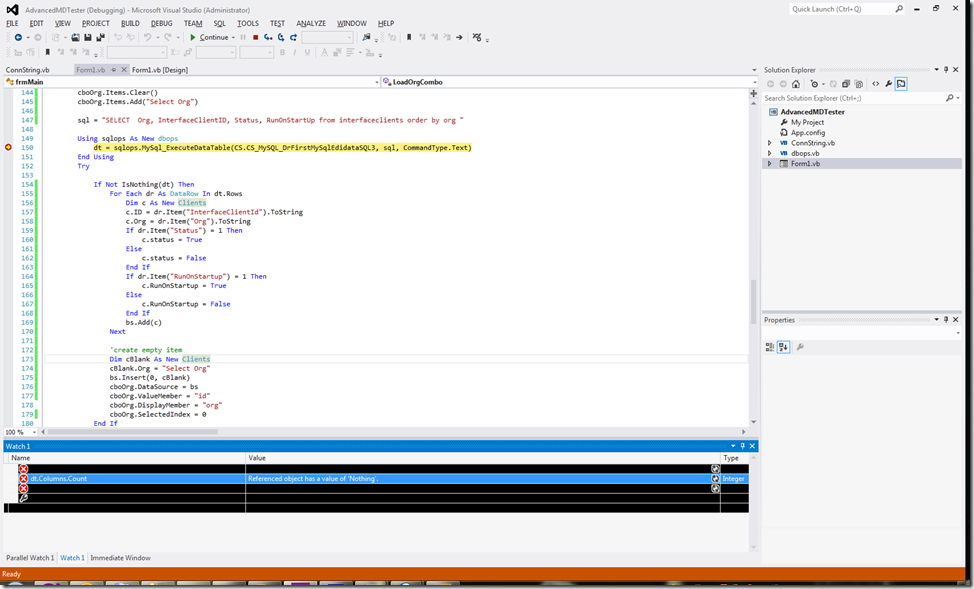
Normally this has something to do with the graphics driver, but updating these drivers doesn’t work all the times. There’s also a work around for this problem, described on the MSDN forum
.
The work around is:
Go to Tools > Options > Environment > Font and Colors
Search for the settings for [Watch, Locals, and Autos Tool Windows]
For Text select the Default for Item ForegroundThe options will look something like the image below.
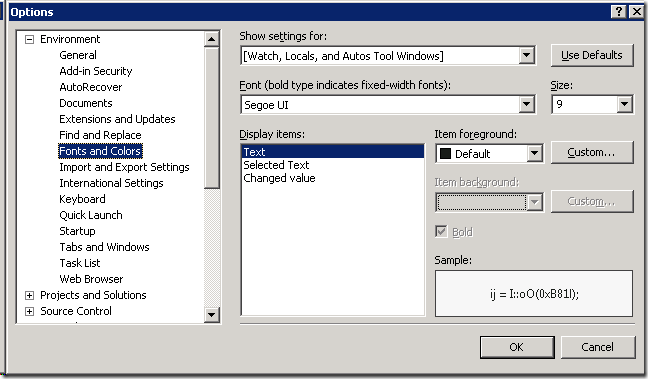
After you’ve set this option you’ll be able to see the text in your watch window again. The lines will be white again with black text.
Read more →There comes a time when you have to do something which appears impossible at start. One of the things I had to confront is moving my SQL database files from the D-drive to the L-drive.
Moving regular SQL database files isn’t that hard at all. Just detach the database, move the files to a new location and attach the database again. However, system databases can’t be moved in this way, which makes sense if you think about it. To move the system databases, you need to run some queries. This method is described on MSDN
and there are also some forum posts
which describe the necessary actions.
For future reference, I’ll describe the necessary steps below.
First, stop the SQL Server and add the following to the startup parameters:
-dL:\Databases\MSSQL.1\MSSQL\Data\System\master.mdf;-eL:\Logs\ERRORLOG;-lL:\Databases\MSSQL.1\MSSQL\Data\System\mastlog.ldf
This will make sure the master database files are searched at the new location (L:\Databases\MSSQL.1\MSSQL\Data\System\)
Now move the physical master database files to the new location.
At this moment it’s possible to start SQL Server again by running the following command:
NET START MSSQLSERVER /f /T3608
This will start SQL Server in master-only mode. You can open Management Studio now again and start a new query window (the Object Explorer doesn’t work in this mode) (using SQLCmd wil also work). In this new query window you will have to execute this script to move the databases to the L:\Databases\MSSQL.1\MSSQL\Data\System\ location.
Read more →Windows 8 has given us a lot of new and cool features for both developers and users. One of these features is the possibility to pin websites to your start screen. Default this tile will look like the favicon of the website, but you are also able to change the pinned tile to a live tile. The live tile will get the necessary information from the RSS feed of the website.
To enable this website-live-tile-feature, just follow these steps.
First, navigate to the https://www.buildmypinnedsite.com
website which acts as a wizard. This website is able to create both the icons and necessary HTML you need to implement on the website.
Just specify the title of the website, the background color of your tile and upload an image you want to use for your live tile. The result will be something like the image below.
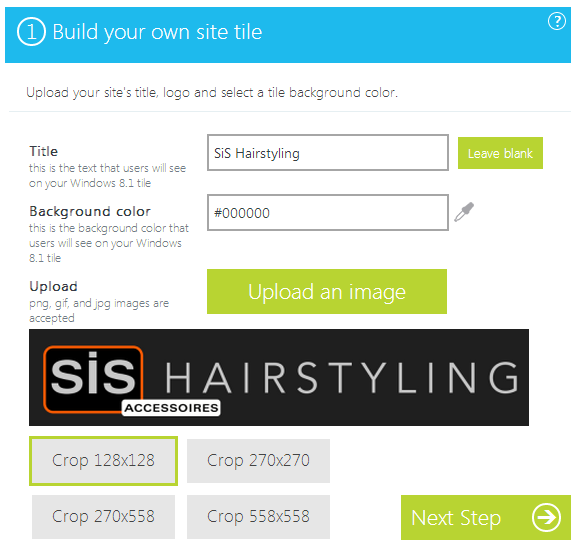
As you can see, there are 4 tile sizes you need to configure. The preview of the tiles is available at the right side of the screen.
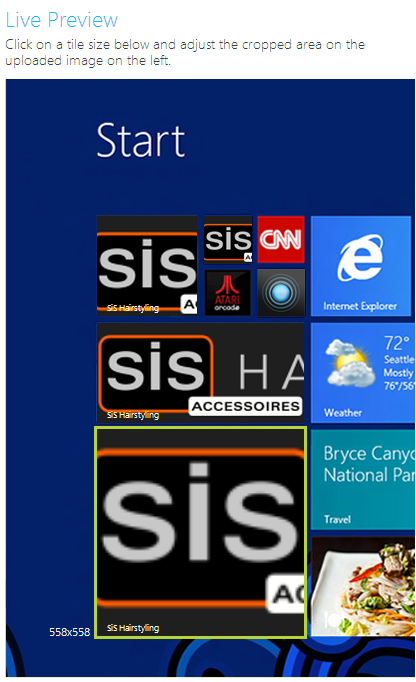
The wizard doesn’t do a very good job at creating images. Therefore I’ve created my own tiles using Paint.NET
with the correct dimensions. The dimensions you need to use for a tile are specified in the table below.
Read more →For some time now I’ve been in possession of the Sony PRS-T1 e-reader. E-readers are great devices and I find it much easier to read from an e-ink screen compared to a regular tablet screen.
However, there’s one thing which is really annoying specific to this Sony PRS-T1. It’s the home screen. Lucky for me the hardware runs on a modified Android OS, so there have been a lot of people modifying the looks and feels of the device. There’s a nice read of hacks and tweaks which can be found on this page
.
One of the tweaks which can be found over there is changing the behavior of the ‘Recently Added’ pane on the home screen. If you read a couple of books at the same time, it’s better to see the ‘Recently Viewed’ books on the home screen. That way it’s possible to quickly navigate to the books you are reading.
To change this behavior you need to access one of the databases on the device and create a new trigger in it.
The databases on the device are (similar?)https://Lite](https://www.sqlite.org/
) databases, therefore you can connect to them using the SQLite Administrator
. After having installed this tool you can just open the books database on the device:
Read more →Some time ago
Microsoft has introduced the ASP.NET Web API framework. It’s a framework you can use to create your own RESTful services
. It’s much like WCF Data Services
or WCF RIA Services
, but a lot easier to use (IMO). I’ve never liked the WCF-stack much, probably because configuring it always posed to be a hassle.
Using the Web API framework is much easier and you have to configure a lot less, or at least I haven’t found all of the configurable options yet. Then again, it’s created for entirely different purposes of course.
To create a service you select the ASP.NET MVC4 project template and can create new controllers which inherit from the ApiController
. It’s also possible to do some awesome queries on your client nowadays, because Web API is capable of supporting OData
! Install the latest stable NuGet package
and you are ready to go!
Because I was put on a new project, I was finally able to do some real work with ASP.NET Web API. We had to develop a solution containing a so called self-hosted Web API service which also supported OData queries. This sounds like a lot of work, but it’s actually rather easy to do so nowadays.
Read more →The solutions in the project I’m working on are quite big and can easily take up 30 to 90 seconds to build, even though we have rather fast laptops. This is probably because of some build-plugins we are forced to use and the tight SharePoint integration of those plugins. Nevertheless, it’s quite annoying to see Visual Studio ‘hang’ every time you build your solution.
Last week I had some time on my hands to do some research on how we could improve these long builds. Turns out you can call MSBuild
directly and let your solution compile outside of the Visual Studio instance. The build will still take up about the same amount of time, but it’s less annoying as you can still do some work in Visual Studio.
I’ve used Scott Hanselman’s blogpost
to create some new External Tools in Visual Studio, placed them in my Menu and created keyboard shortcuts for them.
At the moment I’ve got 3 new items in my menu to build my complete solution, clean my complete solution and to build the project I’m currently working in.

The ‘Clean Solution’ button bound to the default out-of-the-box functionality, offered by Visual Studio.
The External Tool ‘Solution (MSBuild)’ is configured like so:
Read more →When setting up an Orchard website you’re given a choice to use a ’normal’ SQL database, or SQL Compact. When developing new modules I often choose for the SQL Compact option. I choose this option, because it’s very easy to backup and restore the database file. If you mess something up, you’re fairly safe.
You can of course backup and restore normal SQL databases, but this takes a bit more effort compared to copy-pasting a database file.
I hardly ever use a SQL Compact database in other environments as development. This means whenever I need a dump from the Testing environment to Development I’ll get a normal database backup file, or a bacpac export file
. These files can only be restored to normal SQL databases, so that’s a small problem.
Apparently no one at the SQL-team has considered that someone might actually want to ‘downgrade’ their database to SQL Compact.
When searching the web you’ll find a lot of pages people asking the question “How can a SQL database be migrated to SQL Compact
”. As it happens, migrating to SQL Compact is rather easy, once you’ve found the appropriate posts on Stack Overflow. @ErikEJ
has written 2 applications which make it really easy to do such a migration.
Read more →